Maintenance Manager for Education Release Archive
Below is a list of archived enhancements and bug fixes deployed to Maintenance Manager for Education.
2026 Release Notes
 Release Notes 09.11.2026
New Work Order Workflow
-
Work Orders now follow a structured progression:
New → Assigned → In Progress → Completed → Closed
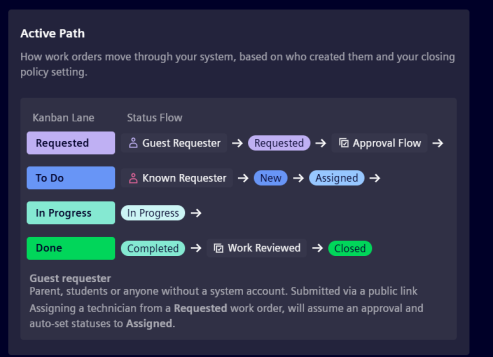
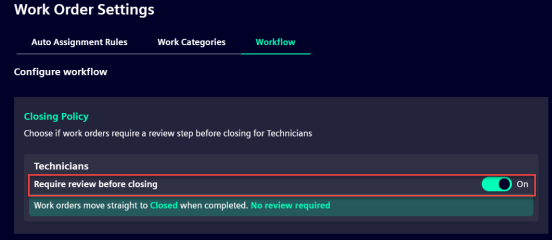
The path from Completed to Closed depends on your organization's review setting:
-
Review before closing is OFF: the technician's Work Order moves directly to Closed when they mark it complete.
-
Review before closing is ON: the Work Order moves to Completed and waits for an administrator to review it before it is closed.
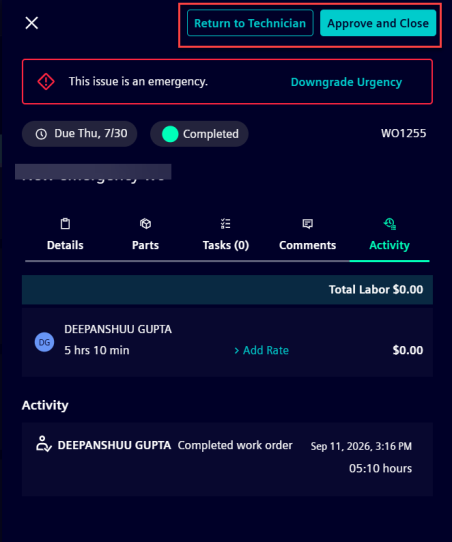
Administrator review and closure
When review is enabled, administrators can open a completed Work Order and either:
-
Approve and Close: Work Order moves to Closed
-
Return to Technician: Work Order is sent back for rework.
"On Hold" Status Changed to “Blocked"
The Blocked status has been renamed to On Hold. Work Orders that were previously Blocked are now shown as On Hold. No action is required, existing Work Orders are updated automatically.
Workflow Notifications
Users are notified when action is needed:
-
Administrators receive a notification when a technician submits a Work Order for review.
-
Technicians receive a notification when a Work Order is reopened and returned to them for rework.
Consistent Workflows Across Work Order Views
The new workflow carries through every major Work Order view, so you can manage work the same way regardless of where you are working.
-
Kanban View- Updated lanes, status filters, drag-and-drop behaviour, and status sequencing reflect the new workflow.
-
List View- Updated statuses, actions, bulk actions, assignee management, and filtering.
-
Calendar View- Updated to support the new workflow and provide consistent scheduling visibility.
-
Dashboard Tiles- My Team Today, Approve Work Orders, PM Completion Rate, Upcoming Work Orders, and Work Distribution all reflect the new workflow.
Location Management Modernization
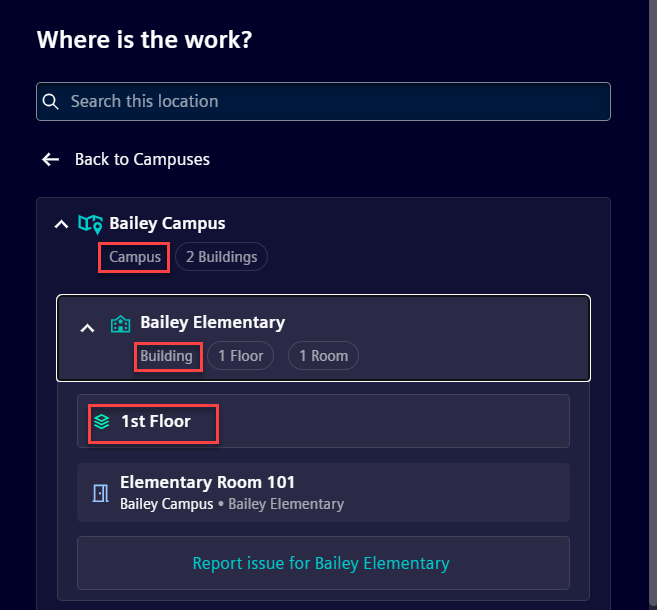
Locations in Work Manager and MME now support a structured hierarchy instead of flat list, giving organisations a clearer way to organise and manage their physical spaces.
Locations are now organised as a structured education location hierarchy as:
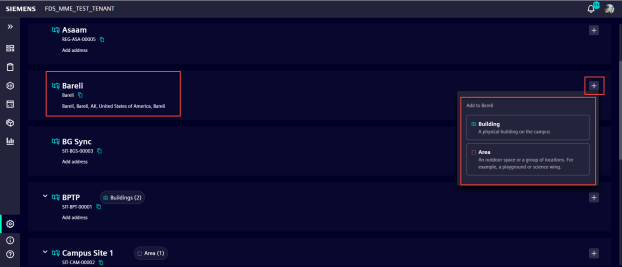
Campus(Can have Area) → Building(Can have Area)→ Floor → Room
You can build this structure from the Locations page, adding buildings, floors, areas, and rooms at the appropriate level. Each level can hold the location types that belong beneath it.
New location picker
A new location picker lets you browse, search, and select locations by navigating through the hierarchy. It replaces the previous flat list in key areas of the product, including:
-
Work Orders
-
Assets
-
Work Order Scheduling
-
Auto-Assignment Rules
Add and edit addresses
You can now add and edit addresses for campuses and buildings directly from the location record.

Deactivate a location
Before deactivating a location, the product now shows you a summary of linked records like, Work Orders, PMs, and Assets, so you can resolve dependencies first.
-
For locations with 50 or fewer linked records, you can reassign or update them before confirming deactivation.
-
For locations with more than 50 linked records, the product provides guidance on how to handle the volume before proceeding.
-
Deactivated buildings and floors can be restored if needed.
Inactive locations in Auto-Assignment Rules
Auto-Assignment Rules now flag inactive locations clearly in the rules grid and prevent you from selecting inactive locations when creating or editing a rule.
Updated location import
The location import experience has been redesigned to support the new hierarchy:
-
A new import wizard guides you through the process step by step.
-
An updated Excel template includes fields for the location hierarchy levels.
-
Field mapping validation confirms that your data maps correctly before the import runs.
-
Error messages are shown clearly when import data has issues, so you can fix and re-import.
Release Notes 09.01.2026
Attach Photo to Each Asset
-
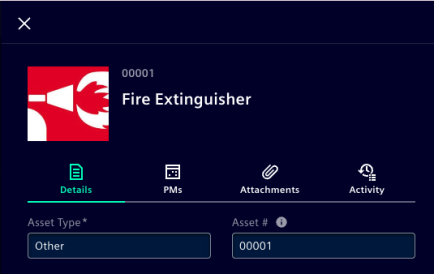
Assets now carry a display photo that you attach to it directly on the record.
-
The image appears both when you open an asset and in the Assets grid list, giving technicians an instant visual reference before they even read the name.

Add Supplier Information to Each Asset
-
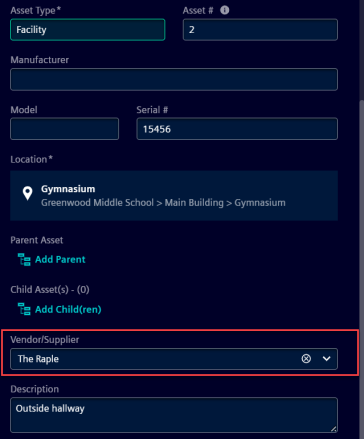
You can now add Vendor and Supplier information directly with each asset record.
-
This will help you get the contact right there whenever you need to raise a warranty claim, order a replacement part, or escalate a service issue.
Find the Right Document Every Time
-
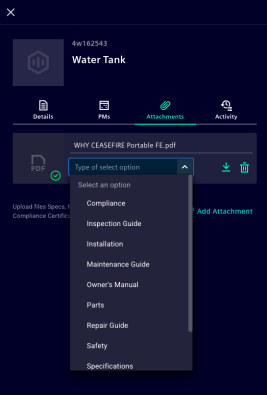
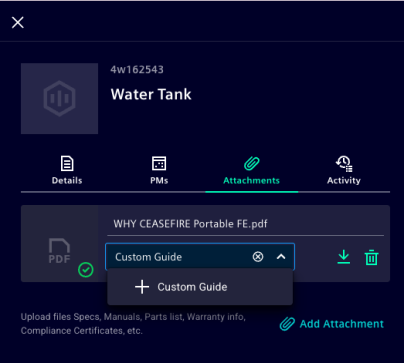
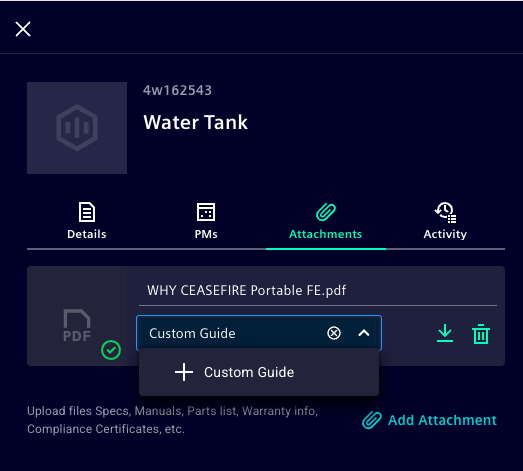
You can classify the documents by type - manuals, safety sheets, inspection guides, compliance certificates, and more while adding them as attachments.
-
If a standard category doesn't fit, teams can create their own custom document types too.
 Release Notes 07.15.2026
Rebranding to Siemens Software
Brightly is now Siemens. Same world-class software, new look and feel.
Maintenance Managerfor Education has been rebranded to align with Siemens.
This update introduces Siemens branding across the application, replacing previous Brightly Software branding within customer-facing screens and supporting documentation.
The support email displayed in help documentation reflects the new Siemens address for the Support Team.
As part of this transition, support contact information has also been updated, and help documentation now reflects the Siemens Support Team email address.
This rebranding does not affect product functionality and is intended to provide a consistent experience across the Siemens Maintenance Manager for Education software offerings.
