What is a Subproject?
Prerequisites for a Subproject
Add / Edit / Delete Category & Attribute (Project Settings)
A Subproject is an individual component within a main project, focused on a specific scope, asset group, or work package. Each Subproject acts as its own unit, with dedicated assets, cost tracking, and status updates.
The Subproject feature helps you simplify and organize large capital projects by breaking them down into smaller, manageable pieces. Each Subproject can focus on a different scope or asset group, making it easier to assign responsibility, track costs, and monitor progress.
Key Capabilities
-
You can create multiple Subprojects within a main project.
-
Add, assign and manage assets at the Subproject level.
-
Tag Subprojects with custom categories and attributes for classification.
-
Track status independently (e.g., Conceptual, Committed, Completed).
-
Allocate funds and monitor costs for each Subproject.
-
Export Subproject details to Excel and PDF for reporting.
-
Ensure all Subprojects are completed before closing the main project.
Prerequisites for a Subproject
Before you create or work on Subprojects, ensure that the following conditions are met:
-
Main project must already exist: A Subproject can only be created within an existing main project. It cannot exist independently.
-
Main project should not be in Completed Status: Subproject management actions are not available if the main project status is Completed.
-
User has the required permissions: Only users with the appropriate roles like Client Admin, Tenant Admin, Partner Admin, or Project Contributor can create, edit, or delete Subprojects.
Users with read-only access can only view Subproject details but cannot make changes.
-
Fund allocation requires a public main project: If the main project is set to Private, the fund allocation feature is not available for its Subprojects.
-
Subproject categories are optional but must be pre-configured:Subproject categories need to be configured inOrganization Settingsbefore they can be selected during Subproject creation.
If no categories are configured, Subprojects can still be created without a category.
-
Subproject must remain within the main project year range: A Subproject cannot extend beyond the fiscal year boundaries defined for the main project. Ensure that the main project year configuration covers the intended Subproject duration.
Navigate to a Subproject
-
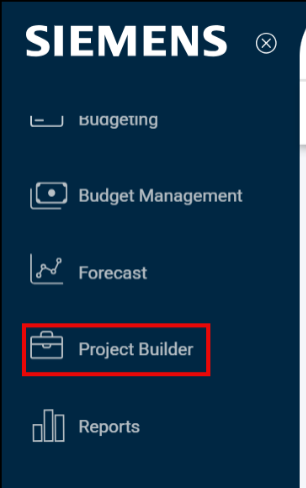
Log in to Origin and scroll down on the side menu to Project Builder.
-
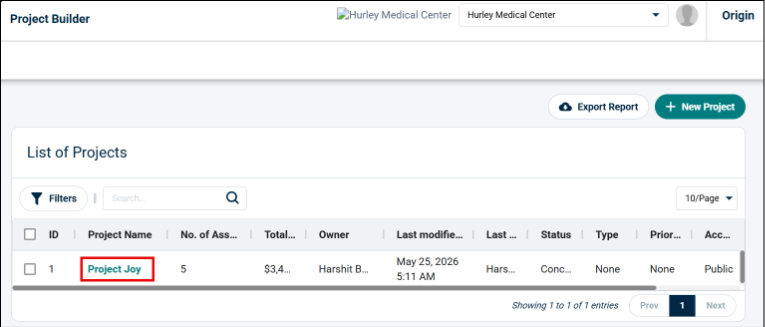
Open Project Builder and select a project from the Project Listing.
-
On the Project Information page, locate the Subprojects tab.
All Subprojects created under the main project are listed on this tab.
How to create a Subproject?
-
From the List of Projects on Project Builder page, select the project that you want to edit.
-
The project information page will open.
-
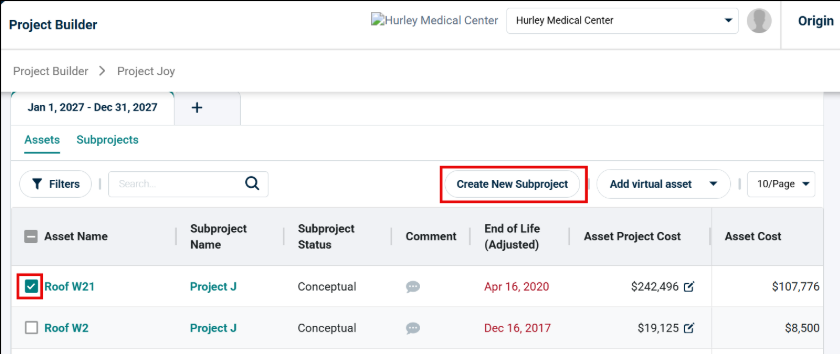
Scroll down to the Assets table.
-
Select the assets to add in the Subproject, and then click Create a New Subproject.
-
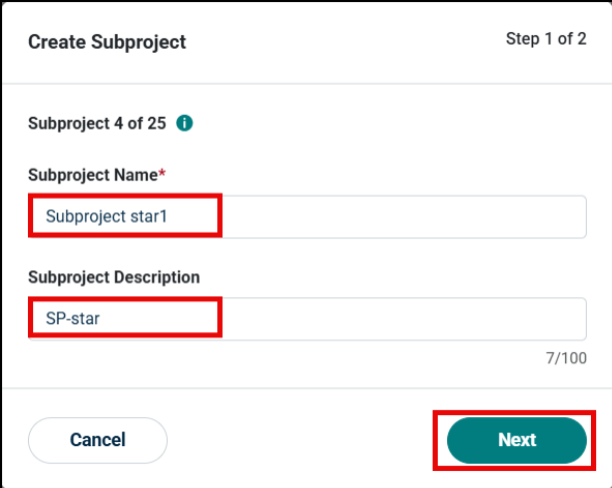
Create Subproject dialog box opens, complete Step 1 by entering the following information:
-
Subproject Name
-
Subproject Description
-
-
Click Next.
-
In Step 2, select the Category and Attributes.
NOTE Subproject categories must be configured in advance in Setting>Projects. If no categories are configured, subprojects can still be created without a category. Check the steps to Add / Edit / Delete Category & Attribute in Project Settings.
-
Click Submit.
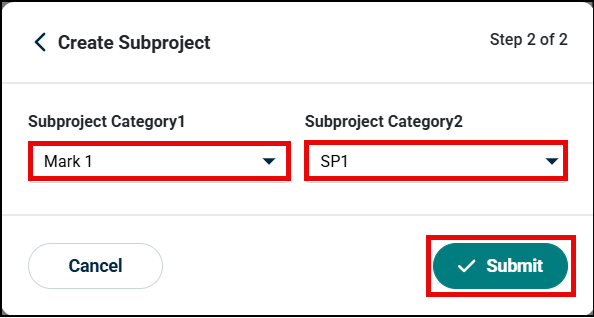
Subproject will be created, and you can find it in the Subproject tab on the Project information page.
Things to Remember:
-
A Max of 25 Subproject can be created per year.
-
An asset can belong to only one Subproject at a time and is reassigned automatically if selected for another Subproject.
-
Subproject names must be unique within the main project.
-
Subproject gets created with the default Conceptual status.
-
Status cannot be reverted once advanced.
Add / Edit / Delete Category & Attribute (Project Settings)
To select a category or attribute while creating a Subproject, you have to first configure it in the settings.
-
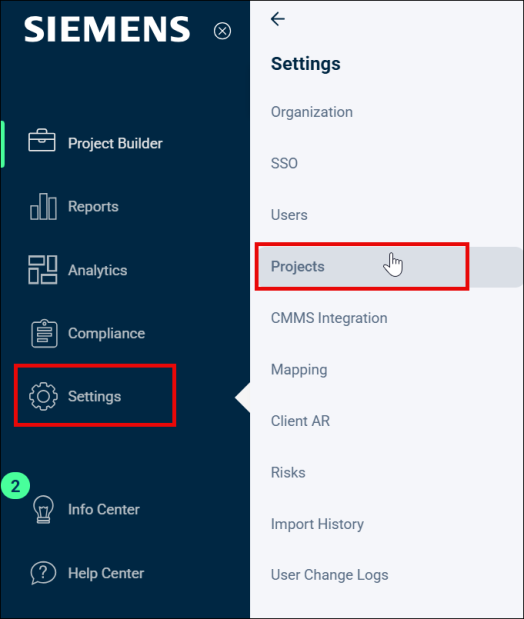
Go to the Settings menu from the side navigation.
-
Click Projects.
-
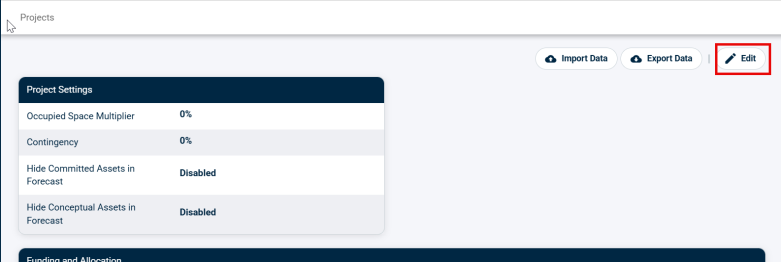
Click the Edit icon at the top right.
-
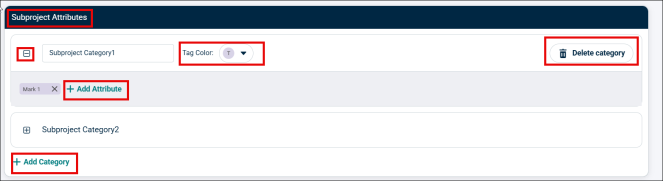
Scroll down to Subprojects Attributes section.
-
Click +Add Category button to expand the drop-down.

-
Enter the Subproject category name, tag a color and add attributes.
-
Click +Add attributes to add more attributes to the category.
-
To add more category, click +Add Category.
-
To delete a category, click Delete category button.
-
Lastly, click Save to save the subproject category.
