Back to Event Manager Main Menu
Creating an Event
Event forms are customizable, so the form you use to create an event may not include all components listed here. If you have questions about filling out the event form, contact your Administrator.
Watch the Video Tutorial:

|

|
How to Create an Event
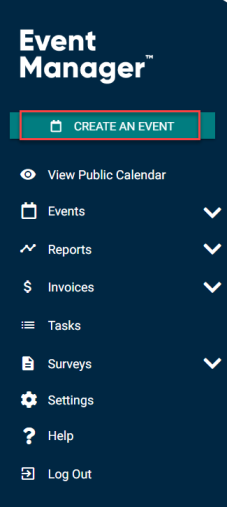
Click on Create an Event in the side navigation menu.
 Event Details
- From the Organization dropdown list, select your Organization.
- In the Event Title field, enter an Event Title.
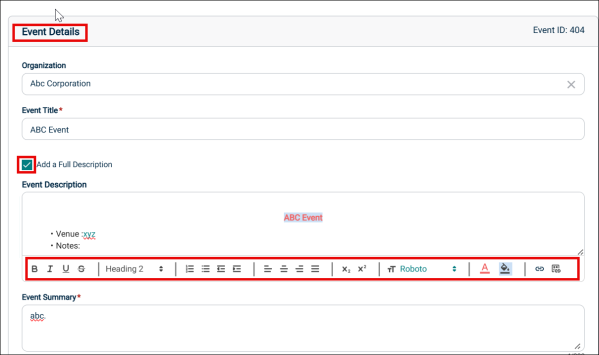
- To enter an event description, select the Add a Full Description check box and enter a description in the Event Description text box. The Event Description has a character limit of 8,000. An error is displayed if you attempt to save the event and the description has more than 8,000 characters.
You can also use the Quill Editor to format text, add headings, lists, links, images, and alignment in the Event Description. This helps you in creating more attractive and informative pages to see on Public Calendar.
NOTE You will only be able to select Organizations that you have been added to as a member.
- In the Event Summary text box, add a Summary. This will show in search results.
- Click Submit.
NOTE When the Required check box is selected by the tenant administrator on the event request form, the Event Description text box is visible and the Add a Full Description text box is not displayed.
NOTE Event Description and Event Summary boxes can be expanded by dragging the three lines on the bottom right corner of the text box. The Event Summary text box accepts a maximum of 300 characters. A counter is provided that shows the updated count dynamically as you add and delete characters.
NOTE The event description is shown on the public calendar whereas the event summary is not.
Location & Time
-
You can select a location for an event easily using the search bar.
-
The location details are displayed in Cards view and Tree-View for easy accessibility.

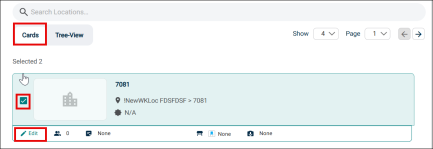
Card View:
-
Select the checkbox for the desired location.
-
Click Edit to edit the details for the location.
-
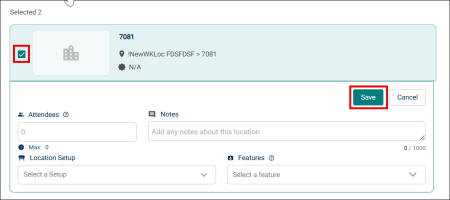
Make the required changes and click Save.
Tree View:
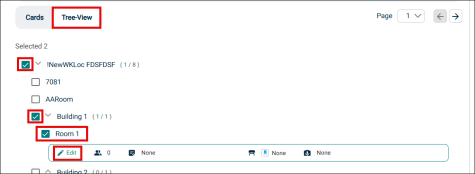
The Tree view gives you a clear, hierarchical structure of locations.
-
Click the checkbox for the desired location. The checkbox for upper hierarchical levels gets automatically selected.
-
To edit the details for the location, click the Edit button.
-
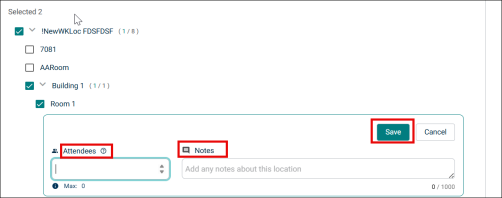
Select the number of Attendees, add Notes and click Save.
-
-
Once you select the location, scroll down to check the availability, time and estimate cost.
-
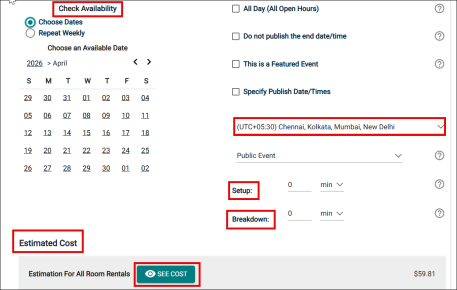
Check the dates availability from the displayed calendar.
-
An event's location and time can be selected in four different ways. Search for availability by location, or by date and time, and then determine if your event will only last a certain number of hours, or if the location should be reserved all day.
-
Each of these ways allows you to choose between a single event occurrence, or a repeating event series.
-
Check the box for required options.
NOTE An All Day event is from 12:00 AM to 11:59 PM for each day the event occurs.
-
Select the time and check the Estimated Cost.
NOTE Under the Estimated Cost subsection, you can view a detailed breakup of the total cost for hosting the event. This includes the charges for the Line Items, Discounts, and Fees.
Search Location by Filter
-
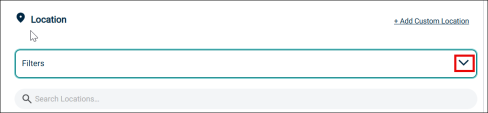
Click the Filters drop-down option to open the filters option.
-
Filters tab will open.
-
Select the Date, Time, Usage and other details.
-
Click Apply.

-
The location as per the applied filters will appear below.
-
Click Clear All to clear the filters.
Add a Custom Location
-
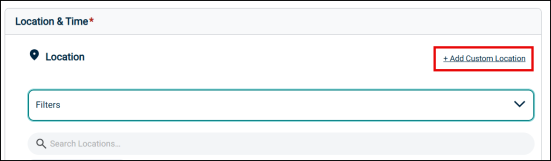
To add a custom location, click +Add Custom Location.
-
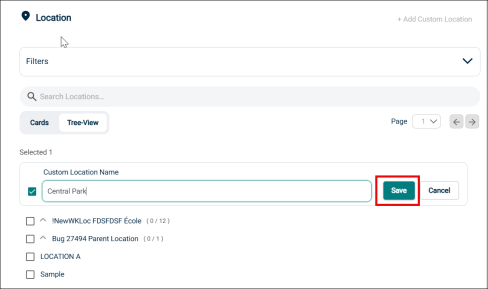
Add the location name in the Custom Location Name field and click Save.
Choose by Location - Hourly Event
- Select the desired Location from the drop down menu.
- Click Location Search in the Locations You've Selected panel.
- Search or filter the list and check the box next to each location needed for this event.
- Click Save.
- Click on the desired Location Setup for this event. The Capacity and Additional Fee (if any) for setup is displayed beneath each option.
NOTE If this Location Setup has a Task Type associated with it, a task will be created automatically for this location setup when the event is saved. Location Setups and Features are only available if you are using Event Manager Professional or Event Manager Enterprise. Contact Client Services for more information.
- Enter any Location Setup Notes needed for each selected Location.
NOTE If no room configurations are available for the selected Location, you will need to click the name of the location to expand this panel before entering any notes.
- Enter the number of attendees.
- Check the box next to any desired Location Features, such as Stage Lighting or a Podium.
NOTE If a feature is grayed out, it is fixed to the location and cannot be removed.
- Click Add Note under a Feature to add details or instructions for the selected Feature.
-
To add a location that isn't listed, click Add a Custom Location and enter the name of the location needed.
- Once the locations are selected, the Date & Times Available For The Selected Location(s) will populate any time slots that are already reserved.
- Navigate to the start date needed for your event.
- Select the time you need by clicking on the appropriate start time on the calendar. Drag the time slot to be the appropriate length.
NOTE Any times that are unavailable will show with a block marked Reserved or Closed. Reserved means that this time has been booked with another event. Closed means that this location is not available for booking during this time.
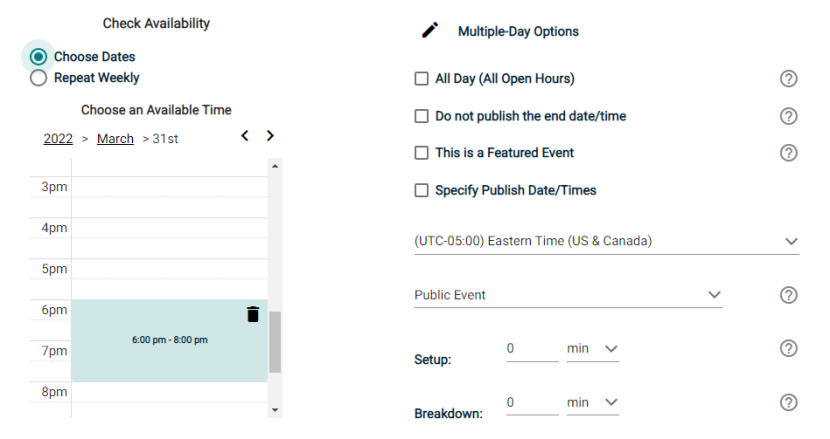
- If your event will repeat, click on the pencil icon next to Multiple-Day Options.
NOTE This option will only appear after you have selected a time on the calendar.
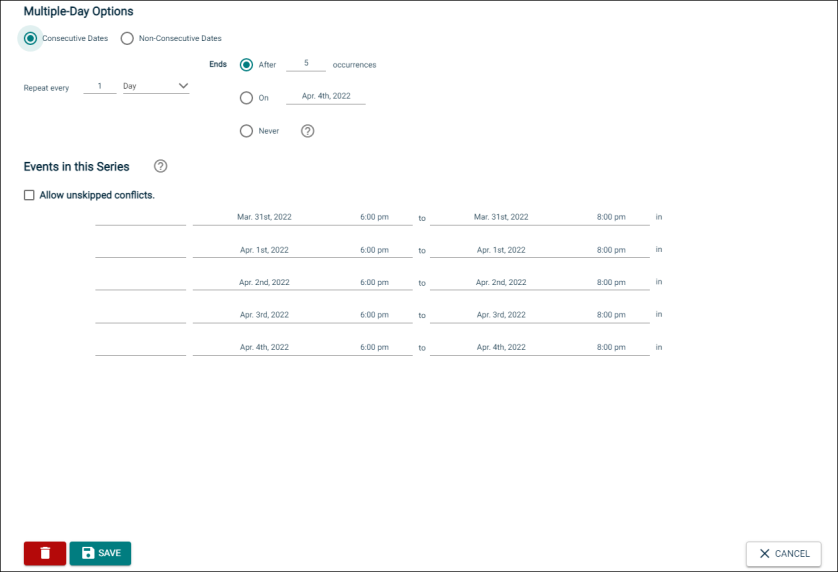
- Choose between Consecutive Dates and Non-Consecutive Dates.
- If you chose Consecutive Dates, choose how often the event repeats, and when the event series ends. After choosing the event pattern, the Events in this Series will populate. Any necessary adjustments can be made here before saving, including the event name, date, or time of an individual event.
- If you chose Non-Consecutive Dates, click on the dates on the calendar you need for your event series. Then make any necessary adjustments to date, time, or event name for the individual events.
- Some events may be marked as a Conflict. You can choose to skip those conflicting dates, or leave them in the series.
NOTE If you choose to skip any dates that are marked as a conflict, they will be deleted from the series.
- Check the box next to Allow unskipped conflicts if you would like to allow double booked dates to be included in this event series.
- Click Save.
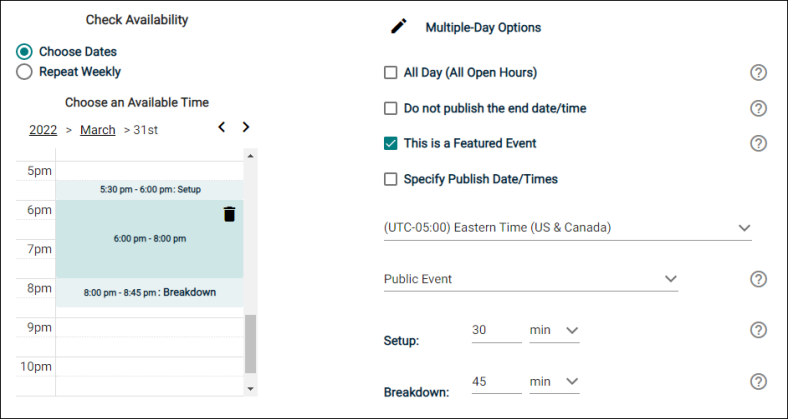
- Do not publish the end date/time: Select this option to display the start date and time of the event, but not the end date and time. An end date and time are still required to publish the event, but you may want to hide that information if you are unsure of the event end time, such as with a sporting event.
- This is a Featured Event: Choosing this option will prominently feature the event at the top of your calendar. Featured events must occur within the next 30 calendar days to be displayed, and must have an event image. By default, the next four featured events will be displayed on the calendar page.
- Specify Publish Date/Times: Determine when the calendar event should appear on the calendar and when it should be removed from the calendar.
- If the time zone for this event varies from the default time zone, select it from the drop down.
- Choose whether this is a Public Event, Private Event, or Unlisted Event.
- If applicable, enter the Setup and Breakdown time needed for your event. This prevents others from booking over the setup and breakdown time, while the event on the public calendar will only display the actual event start time.
Choose by Location - All Day Event
- Select the desired Location from the drop down menu.
- Click Location Search in the Locations You've Selected panel.
- Search or filter the list and check the box next to each location needed for this event.
- Click Save.
- Click on the desired Location Setup for this event. The Capacity and Additional Fee (if any) for setup is displayed beneath each option.
NOTE If this Location Setup has a Task Type associated with it, a task will be created automatically for this location setup when the event is saved. Location Setups and Features are only available if you are using Event Manager Professional or Event Manager Enterprise. Contact Client Services for more information.
- Enter any Location Setup Notes needed for each selected Location.
NOTE If no room configurations are available for the selected Location, you will need to click the name of the location to expand this panel before entering any notes.
- Enter the number of attendees.
- Check the box next to any desired Location Features, such as Stage Lighting or a Podium.
NOTE If a feature is grayed out, it is fixed to the location and cannot be removed.
- Click Add Note under a Feature to add details or instructions for the selected Feature.
- To add a location that isn't listed, click Add a Custom Location and enter the name of the location needed.
- Check the box next to All Day.
- Navigate to the appropriate month on the calendar.
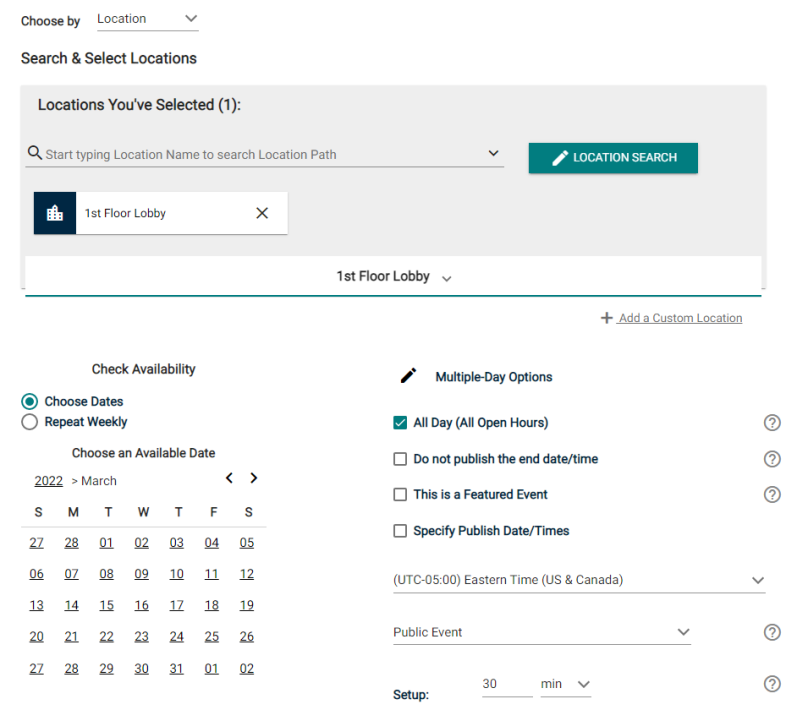
- Click on the start date needed for this event.
- If your event will repeat, click on the pencil icon next to Multiple-Day Options.
NOTE This option will only appear after you have selected a start date on the calendar.
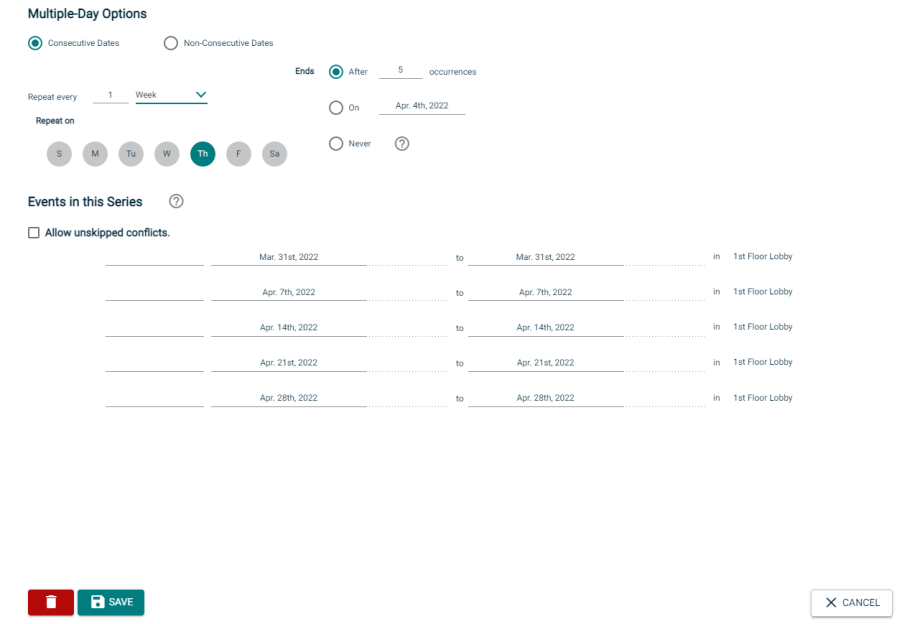
- Choose between Consecutive Dates and Non-Consecutive Dates.
- If you chose Consecutive Dates, choose how often the event repeats, and when the event series ends. After choosing the event pattern, the Events in this Series will populate. Any necessary adjustments can be made here before saving, including the event name or date of an individual event.
- If you chose Non-Consecutive Dates, click on the dates on the calendar you need for your event series. Then make any necessary adjustments the date or event name for the individual events.
- Some events may be marked as a Conflict. You can choose to skip those conflicting dates, or leave them in the series.
NOTE If you choose to skip any dates that are marked as a conflict, they will be deleted from the series.
- Check the box next to Allow unskipped conflicts if you would like to allow double booked dates to be included in this event series.
- Click Save.
- Do not publish the end date/time: Select this option to display the start date and time of the event, but not the end date and time. An end date and time are still required to publish the event, but you may want to hide that information if you are unsure of the event end time, such as with a sporting event.
- This is a Featured Event: Choosing this option will prominently feature the event at the top of your calendar. Featured events must occur within the next 30 calendar days to be displayed, and must have an event image. By default, the next four featured events will be displayed on the calendar page.
- Specify Publish Date/Times: Determine when the calendar event should appear on the calendar and when it should be removed from the calendar.
- If the time zone for this event varies from the default time zone, select it from the drop down.
- Choose whether this is a Public Event, Private Event, or Unlisted Event.
- If applicable, enter the Setup and Breakdown time needed for your event. This prevents others from booking over the setup and breakdown time, while the event on the public calendar will only display the actual event start time.
Choose by Date & Time - Hourly Event
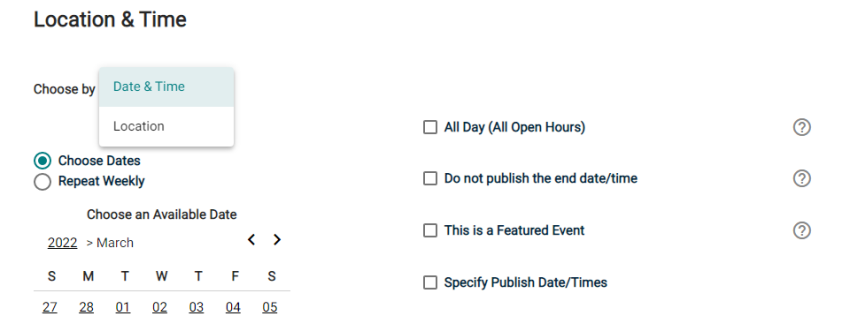
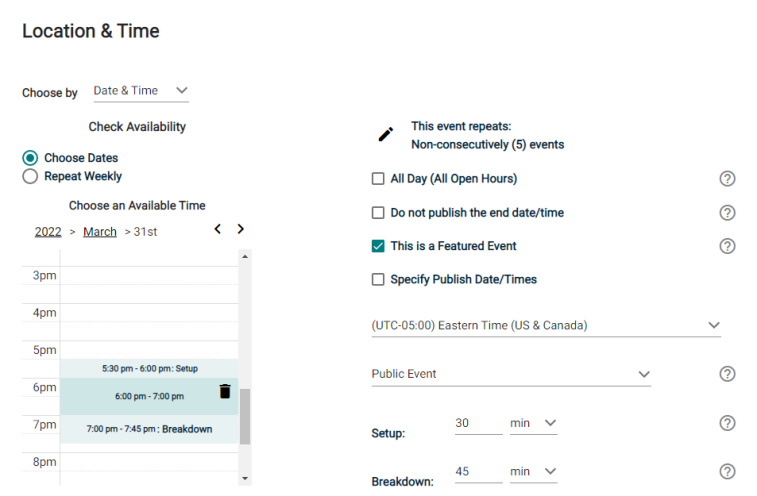
- In the Choose By drop down menu, select Date & Time.
- Navigate to the start date needed for your event.
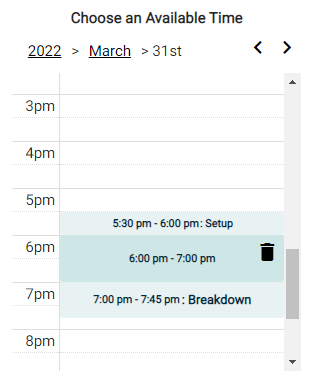
- Select the time you need by clicking on the appropriate start time on the calendar. Drag the time slot to be the appropriate length.
-
If your event will repeat, click on the pencil icon next to Multiple-Day Options.
NOTE This option will only appear after you have selected a time on the calendar.
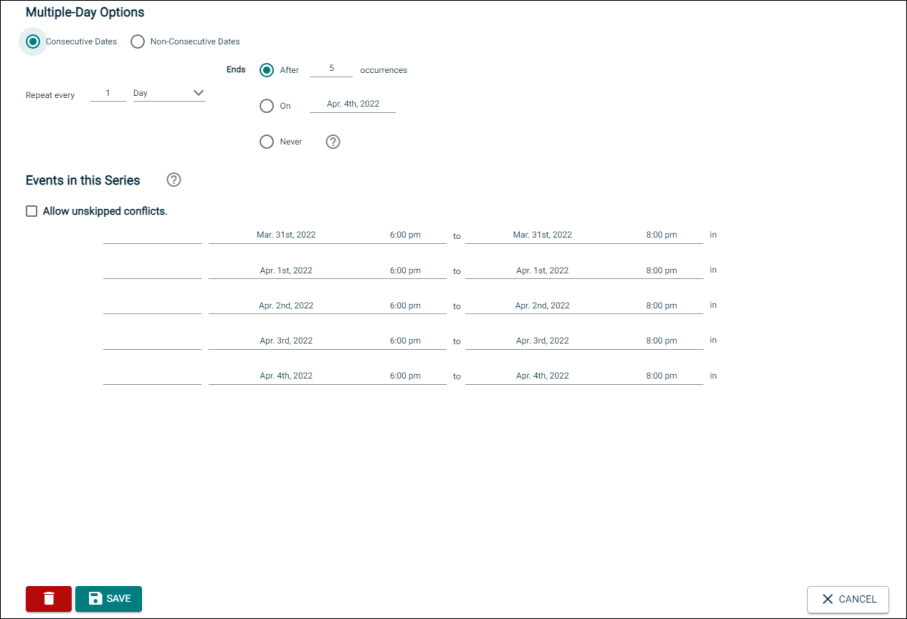
- Choose between Consecutive Dates and Non-Consecutive Dates.
- If you chose Consecutive Dates, choose how often the event repeats, and when the event series ends. After choosing the event pattern, the Events in this Series will populate. Any necessary adjustments can be made here before saving, including the event name, date, or time of an individual event.
- If you chose Non-Consecutive Dates, click on the dates on the calendar you need for your event series. Then make any necessary adjustments to date, time, or event name for the individual events.
- Some events may be marked as a Conflict. You can choose to skip those conflicting dates, or leave them in the series.
NOTE If you choose to skip any dates that are marked as a conflict, they will be deleted from the series.
- Check the box next to Allow unskipped conflicts if you would like to allow double booked dates to be included in this event series.
- Click Save.
- Do not publish the end date/time: Select this option to display the start date and time of the event, but not the end date and time. An end date and time are still required to publish the event, but you may want to hide that information if you are unsure of the event end time, such as with a sporting event.
- This is a Featured Event: Choosing this option will prominently feature the event at the top of your calendar. Featured events must occur within the next 30 calendar days to be displayed, and must have an event image. By default, the next four featured events will be displayed on the calendar page.
- Specify Publish Date/Times: Determine when the calendar event should appear on the calendar and when it should be removed from the calendar.
- If the time zone for this event varies from the default time zone, select it from the drop down.
- Choose whether this is a Public Event, Private Event, or Unlisted Event.
- If applicable, enter the Setup and Breakdown time needed for your event. This prevents others from booking over the setup and breakdown time, while the event on the public calendar will only display the actual event start time.
- Select the desired Location from the drop down menu.
- Alternatively, click Location Search in the Locations You've Selected panel.
- Search or filter the list and check the box next to each location needed for this event.
- Click Save.
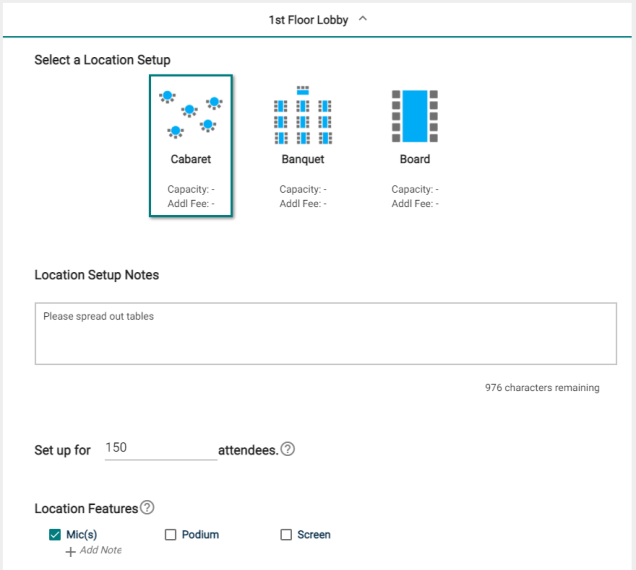
- Click on the desired Location Setup for this event. The Capacity and Additional Fee (if any) for setup is displayed beneath each option.
NOTE If this Location Setup has a Task Type associated with it, a task will be created automatically for this location setup when the event is saved. Location Setups and Features are only available if you are using Event Manager Professional or Event Manager Enterprise. Contact Client Services for more information.
- Enter any Location Setup Notes needed for each selected Location.
NOTE If no room configurations are available for the selected Location, you will need to click the name of the location to expand this panel before entering any notes.
- Enter the number of attendees.
- Check the box next to any desired Location Features, such as Stage Lighting or a Podium.
NOTE If a feature is grayed out, it is fixed to the location and cannot be removed.
- Click Add Note under a Feature to add details or instructions for the selected Feature
- To add a location that isn't listed, click Add a Custom Location and enter the name of the location needed.
Choose by Date & Time - All Day Event
- In the Choose By drop down menu, select Date & Time.
- Check the box next to All Day.
- Navigate to the appropriate month on the calendar.
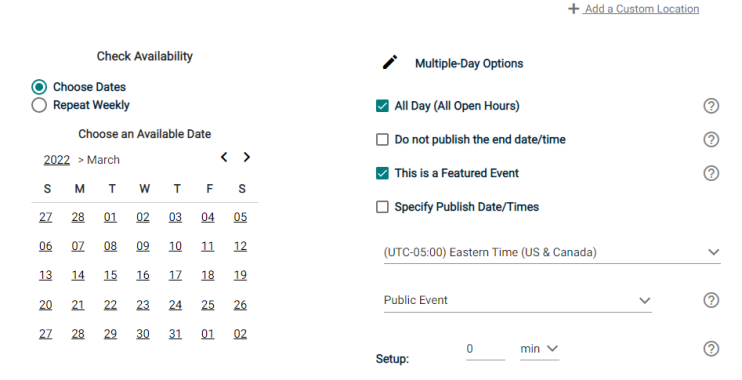
- Click on the start date needed for this event.
- If your event will repeat, click on the pencil icon next to Multiple-Day Options.
NOTE This option will only appear after you have selected a start date on the calendar.
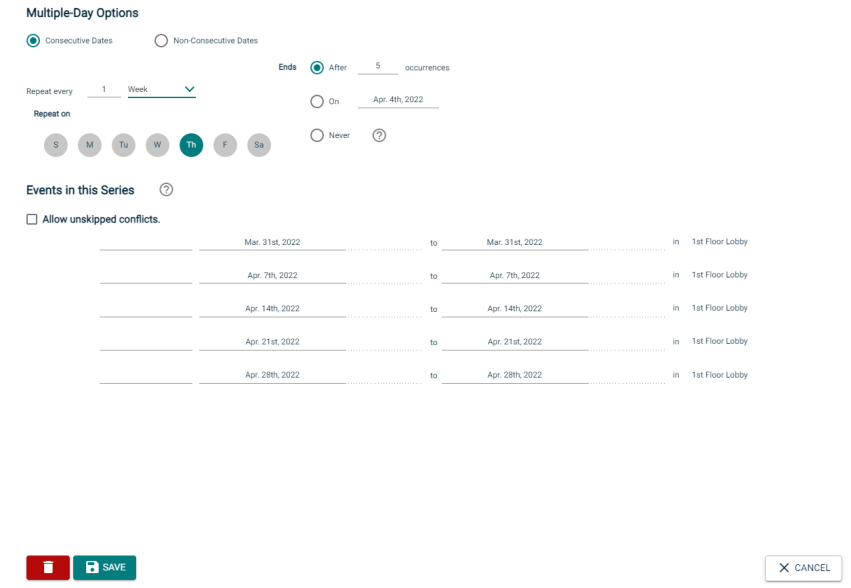
- Choose between Consecutive Dates and Non-Consecutive Dates.
- If you chose Consecutive Dates, choose how often the event repeats, and when the event series ends. After choosing the event pattern, the Events in this Series will populate. Any necessary adjustments can be made here before saving, including the event name or date of an individual event.
- If you chose Non-Consecutive Dates, click on the dates on the calendar you need for your event series. Then make any necessary adjustments the date or event name for the individual events.
- Some events may be marked as a Conflict. You can choose to skip those conflicting dates, or leave them in the series.
NOTE If you choose to skip any dates that are marked as a conflict, they will be deleted from the series.
- Check the box next to Allow unskipped conflicts if you would like to allow double booked dates to be included in this event series.
- Click Save.
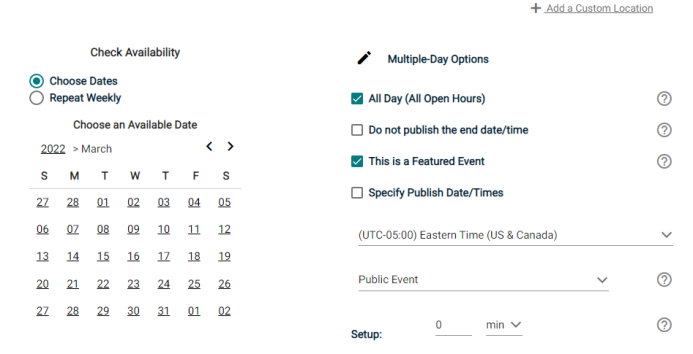
- Do not publish the end date/time: Select this option to display the start date and time of the event, but not the end date and time. An end date and time are still required to publish the event, but you may want to hide that information if you are unsure of the event end time, such as with a sporting event.
- This is a Featured Event: Choosing this option will prominently feature the event at the top of your calendar. Featured events must occur within the next 30 calendar days to be displayed, and must have an event image. By default, the next four featured events will be displayed on the calendar page.
- Specify Publish Date/Times: Determine when the calendar event should appear on the calendar and when it should be removed from the calendar.
- If the time zone for this event varies from the default time zone, select it from the drop down.
- Choose whether this is a Public Event, Private Event, or Unlisted Event.
- If applicable, enter the Setup and Breakdown time needed for your event. This prevents others from booking over the setup and breakdown time, while the event on the public calendar will only display the actual event start time.
- Select the desired Location from the drop down menu.
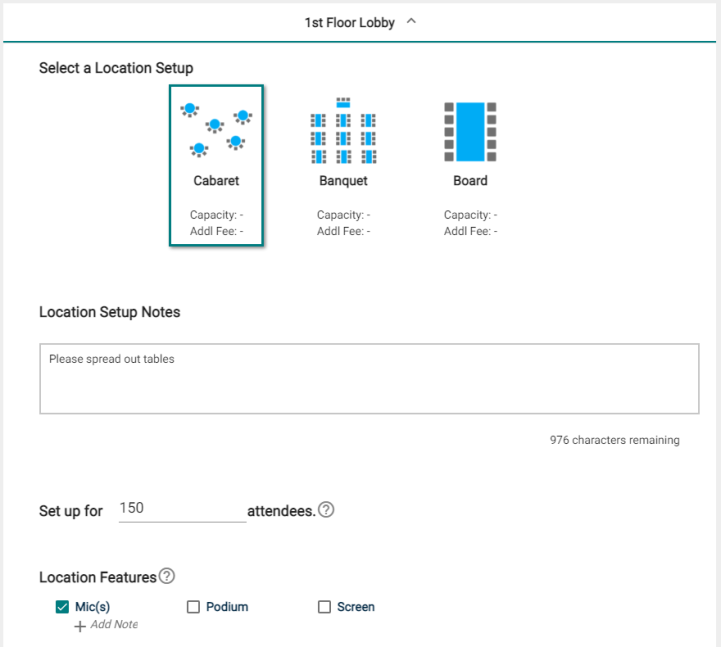
- Click on the desired Location Setup for this event. The Capacity and Additional Fee (if any) for setup is displayed beneath each option.
NOTE If this Location Setup has a Task Type associated with it, a task will be created automatically for this location setup when the event is saved. Location Setups and Features are only available if you are using Event Manager Professional or Event Manager Enterprise. Contact Client Services for more information.
- Enter any Location Setup Notes needed for each selected Location.
NOTE If no room configurations are available for the selected Location, you will need to click the name of the location to expand this panel before entering any notes.
- Enter the number of attendees.
- Check the box next to any desired Location Features, such as Stage Lighting or a Podium.
NOTE If a feature is grayed out, it is fixed to the location and cannot be removed.
- Click Add Note under a Feature to add details or instructions for the selected Feature.
- To add a location that isn't listed, click Add a Custom Location and enter the name of the location needed.
- Click Location Search in the Locations You've Selected panel.
- Search or filter the list and check the box next to each location needed for this event.
- Click Save.
Categories & Keywords
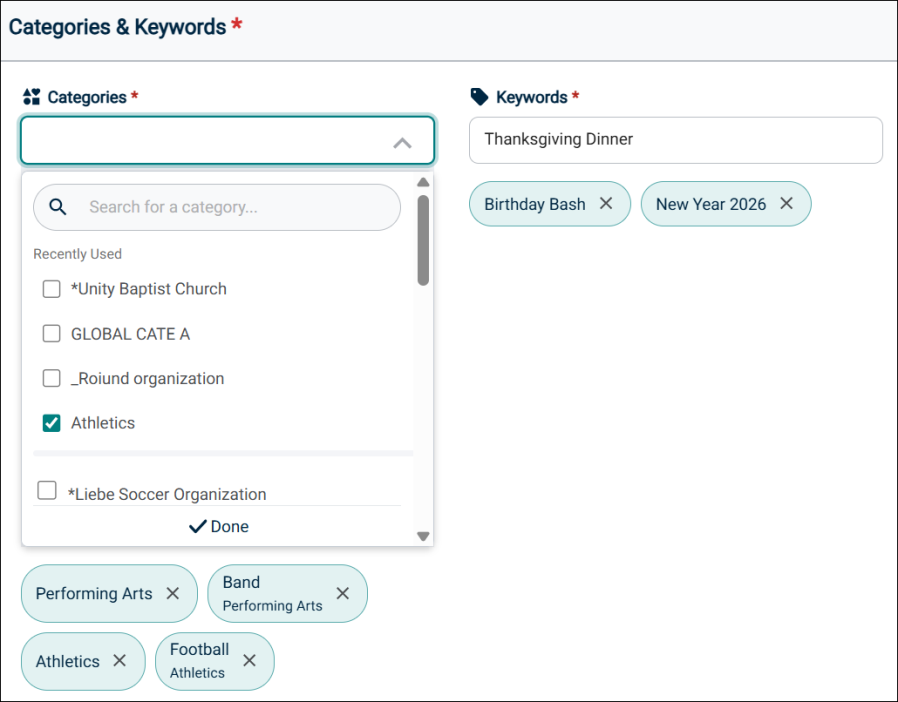
Categories and keywords allow you to classify your event to make them easier to find when visitors search your site.
- Choose any Category that applies to this event using the Categories dropdown list. Visitors will be able to search and filter events based on categories.
- Enter any Keyword or tag that visitors may use to search for your event in the Keywords text box and then press enter.
Additional Information
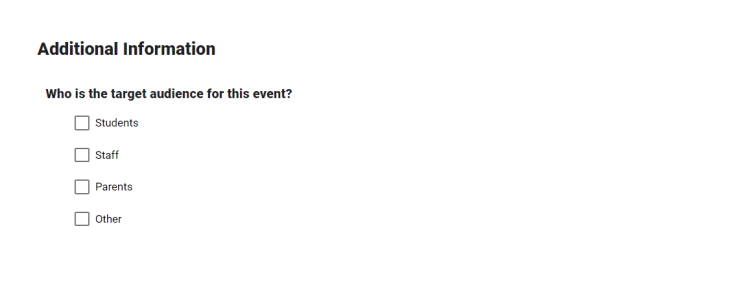
This is where any Custom Event Fields will show for this Site. This could include text fields, a checkbox field, or a multiple choice field. These additional information fields can be configured by an administrator on the Event Setup page. Required fields are marked with an asterisk (*) symbol. *Note: A user can add up to 30 site-specific questions on the Event Setup form.
Contact Information
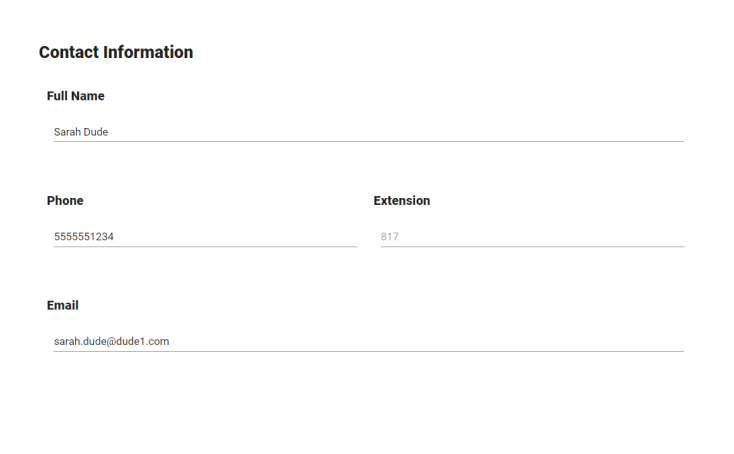
- Enter the contact information for the event coordinator or person whom visitors can contact with questions about the event.
NOTE This information is publicly displayed for each event.
Pictures & Attachments
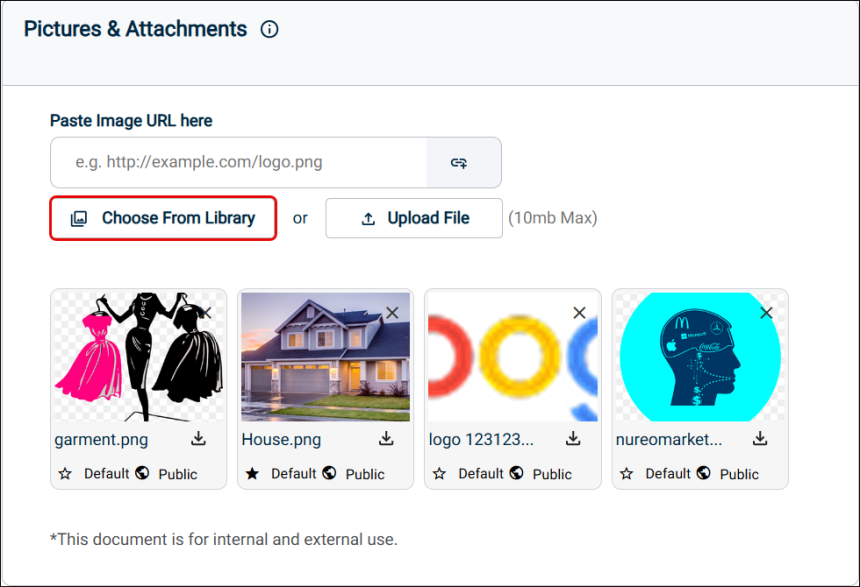
You can upload up to 5 pictures to an event. Each picture can have a maximum size of 3 MB and you can add up to 10 MB of attachments.
There are several different places the Event Image is displayed:
-
The Highlighted Events area
-
The Event Summary view
-
The Event Details view
-
The Location view
Each image should have an aspect ratio of 1.6: 1 in order to scale properly in all views. For example, an image that is 1600 x 1000 pixels will scale properly throughout Event Publisher.
- Upload an attachment by locating the file on your computer, or pasting the attachment URL in the text field.
-
Click the Eye icon on the image preview to change the status from Public to Private.
- Click Choose From Library to find an attachment that has been added to the Event Publisher media library.
-
If you have multiple images for an event, click on the star icon in the top left corner of an attachment to select it as the Default for the event. This is the image that will be used in the event listing. A default image is visible to all users and cannot take the Private status.
- Click the T icon (
 ) to edit the alternate text that will display when a user hovers their mouse over the attachment. It is also used by visually impaired web browser assistance applications for WCAG conformance.
 - Click the trash can icon (
 ) to remove an attachment from the event.
 - Click the download icon (
 ) to open a picture in a new tab of your browser. If you click the icon on an attachment, it will be downloaded to your computer, where it can be viewed using the appropriate application.
Insurance
You can provide the insurance information for an event, either by using the event organization's information or by entering custom insurance information.
NOTE This may be required depending on the configuration of the event form you are using.
- The Custom option will be selected by default, but you can choose to Use Organization's Insurance Info, if you would like to auto-populate the insurance information of the organization holding this event.
- If you leave Custom selected, you can enter the insurance information for this event manually.
- Enter the Insurance Company.
- Enter the Policy Number.
- Enter the Coverage Amount.
- Enter the expiration date of the insurance in the Coverage Expiration field.
Click Upload to select a file from your computer. The file will be added to the Insurance Document Library for future use.
Sale Items
A Sale Item can be a physical item being sold for the event, such as a T-shirt, or a registration item, such as an admission ticket.
- Click the Add a Sale Item button.
Details
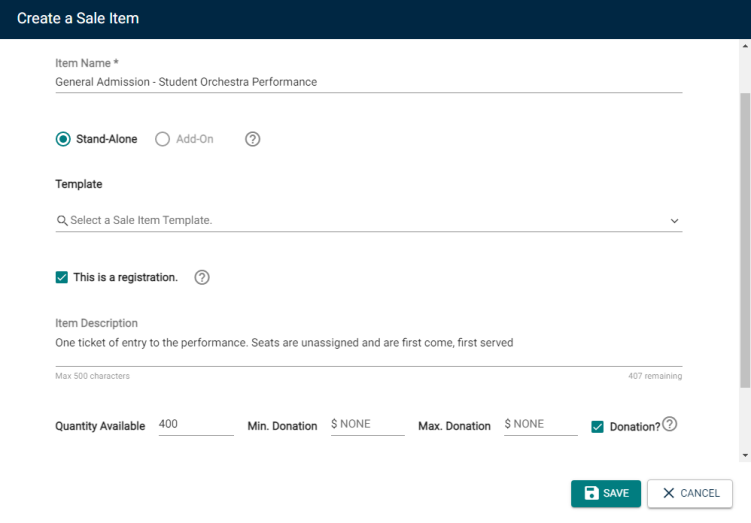
- Enter an Item Name.
- If this item is an Add-On, select that option.
- An Add-On item can only be purchased if a separate item is also being purchased. Choose the sale item this Add-On is dependent on.
NOTE You must add the Stand-Alone item prior to adding the Add-On item.
- An Add-On item can only be purchased if a separate item is also being purchased. Choose the sale item this Add-On is dependent on.
- If you would like to use a sale item template, select it from the drop down menu. This will populate any field that is included in the template.
- If you would like this sale item to include ticketing so attendance can be tracked, check the box next to This is a registration. The tickets will be emailed to the user, and will include a QR code so the ticket can be scanned.
- Enter an Item Description. This should provide more detail than the Item Name.
- Enter the Quantity Available for this item.
- If there is a Cost associated with this item, enter the amount. If you would prefer to accept donations, check the Donation box.
- Enter any applicable minimum and/or maximum donation amount.
When accepting donations as payment for a sale item, a minimum donation amount may help ensure that event costs are covered, and a maximum donation amount may help avoid donation limits for a non-profit organization and reduce the risk of accidentally large donations.
- By default, the sale item will be Available as long as the event is published. If you would prefer, select Specific Availability to determine a time period prior to the start of the event that you would like this item to be available.
- If that is all the information you would like to enter for this sale item, click the Save button. Otherwise, move on to the next section.
Pictures
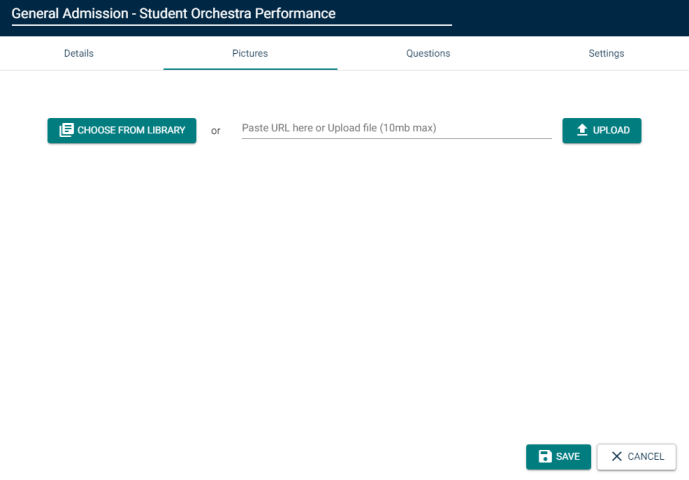
- Click on the Pictures tab.
- Upload a picture by locating the file on your computer, or pasting the image URL in the text field.
- Click Choose From Library to find an image that has been added to the Event Publisher media library.
- If that is all the information you would like to enter for this sale item, click the Save button. Otherwise, move on to the next section.
Questions
- Click on the Questions tab.
- If the sale item is a Registration, then First Name, Last Name and Email Address will be required questions by default.
- Check the Include box next to any other questions you would like the user to answer from the list of Available Questions.
- Click the Add a Question button to create a question that is not yet in the list.
- Select the question type from the drop down menu, then type the Question text.
NOTE Only questions that have been added this way are able to be edited.
- Select the question type from the drop down menu, then type the Question text.
- If that is all the information you would like to enter for this sale item, click the Save button. Otherwise, move on to the next section.
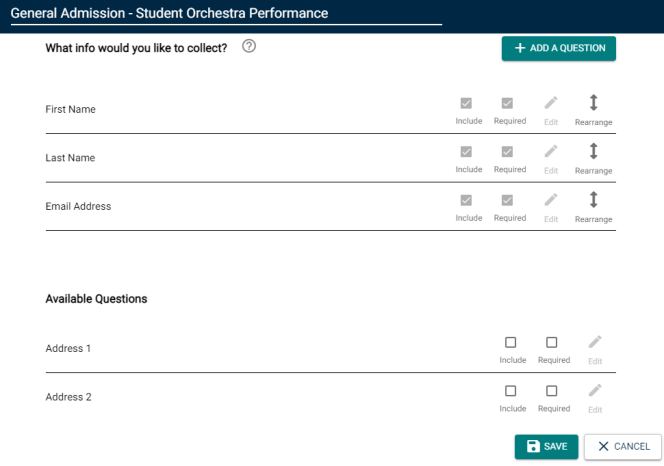
There are two ways to add a question to the list of Available Questions for a Sale Item.
- Adding a question directly from this page will make that question available for any sale item attached to this event. Use this option if you do not need the question to be available for other events.
- Adding a question to the question library in Sale Item Settings will make that question available for all sale items across all events moving forward. If you want to use this question again for a later event, use this option.
Settings
- Click on the Settings tab.
-
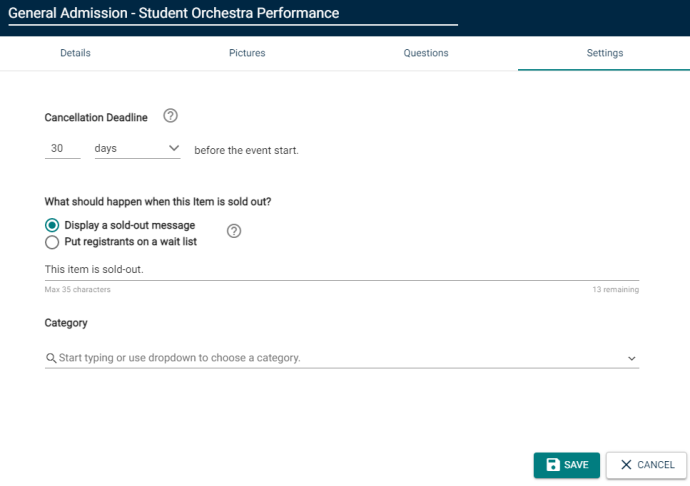
Enter the amount of time prior to the start of the event that will serve as the Cancellation Deadline. By default, this will be 24 hours prior to the start of the event, but can be set up with units of minutes, hours, days, or weeks.
- By default, when an item is sold out, the system will Display a sold-out message. Enter your desired sold-out message in the text field.
- If you would prefer, you can choose to Put registrants on a waitlist. Choosing this option means that there will be no Sold-Out message, but instead a user will be able to add themselves to the waitlist. This list can be managed from the event’s registration Dashboard, where an administrator can process a wait-listed user’s registration manually if a spot becomes available.
- Enter a Category for this sale item. These Categories can be setup in Sale Item Settings.
- Once you have entered all necessary information for this Sale Item, click Save.
Attach a Survey
You have two options when attaching a survey to an event: selecting a survey that has already been created, or creating a new survey from a template.
Select an Existing Survey
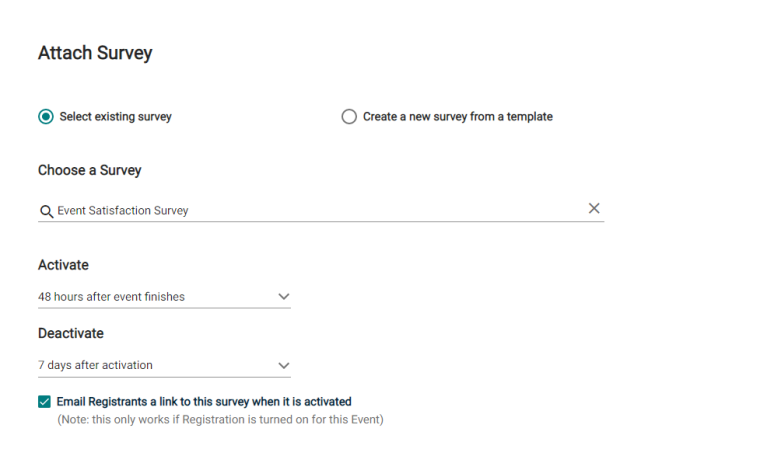
- To attach an existing survey, be sure the Select existing survey option is selected.
- Use the Choose a Survey drop down menu to locate the survey from the list.
-
Choose the time frame after the event that the survey will Activate and Deactivate.
NOTE Active surveys can be answered by anyone with access to the survey link.
-
If this event included registration, check the box to Email Registrants a link to this survey when it is activated.
Create a New Survey from a Template
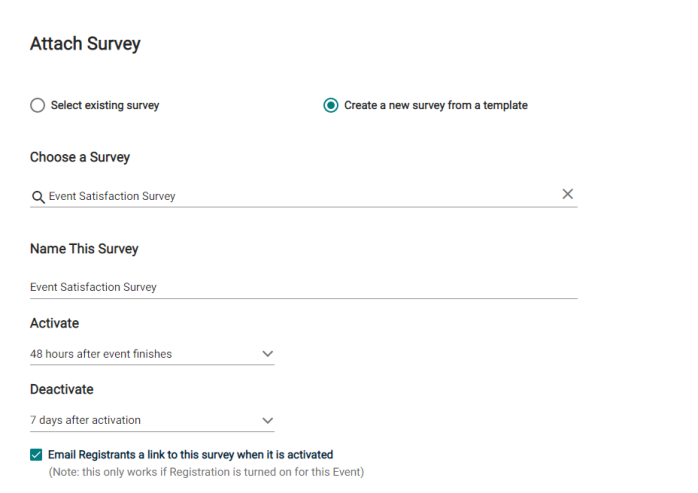
- To create a new survey, select the Create a new survey from a template option.
- Use the Choose a Survey Template drop down menu to locate the template you wish to use.
- Type a name for the survey.
-
Choose the time frame after the event that the survey will Activate and Deactivate.
NOTE Active surveys can be answered by anyone with access to the survey link.
-
If this event included registration, check the box to Email Registrants a link to this survey when it is activated.
Tasks
A Task represents something that needs to be completed in relation to this event.
NOTE If this is an event series, these tasks will be replicated for each event in the series.
If you have added Location Setups to this event, don't worry about creating a separate task here. Once the event has been approved, tasks will be created automatically to take care of the Setup, Breakdown, and Feature requirements. Contact your system administrator if you have any questions.
Add a Task
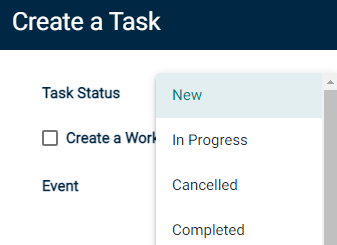
- Select the Task Status from the drop-down menu. *Note: The task will default to the status of New.
- If you need to associate this task with an event, begin typing in the Event field and select the event.
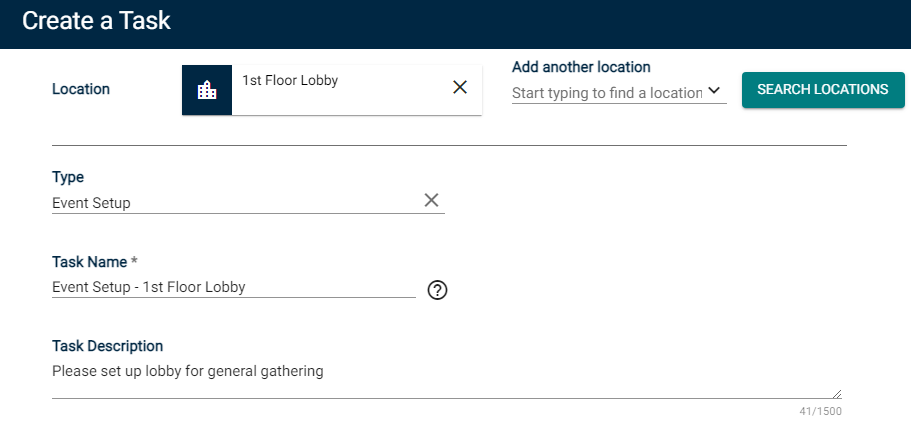
- If you'd like to associate this task to a location, click Search Locations next to Location.
- In the window that appears, search or filter the list and check the box next to each location needed for this task.
- Click Save.
- Select a task Type from the dropdown menu.
- Enter a Task Name.
- Enter a Task Description. This should be used to provide more detailed information that will give the task assignee the specific instructions for the task. *Note: There is a limit of 500 characters for this field.
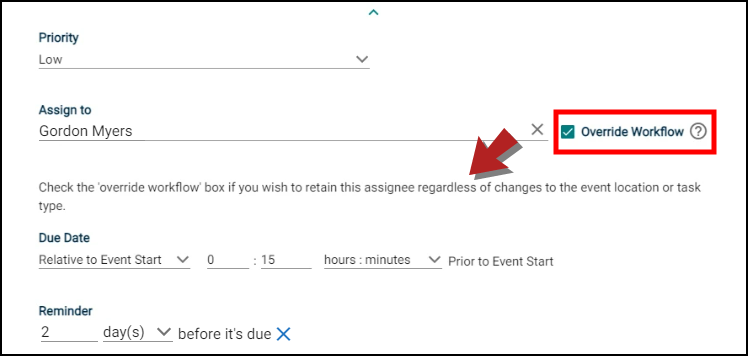
- Select the Priority for this task.
- Assign a user to this task by selecting their name from the Assign to dropdown menu.
NOTE If you have selected a user as the default assignee for a specific task type, their name will autopopulate here, though the assignment can be changed.
- If you check the Override Workflow box, the assignee will remain the same even if the event location is changed.
NOTE When this box is unchecked, it will allow the task to be reassigned to the appropriate assignee based on the default workflow if the event's location is changed.
- Select a Time and Date under Due Date for the task to be done by.
NOTE If this task has been tied to an event, you have the option to set the task due date relative to the event start date.
- The Reminder will be set automatically based on your Task Settings, but can be easily adjusted or removed.
NOTE In addition to the email reminder set here, the assignee will also receive an initial email notification informing them of the task being assigned to them.
- Enter the number of days or hours before the task is due for the email notification to go out.
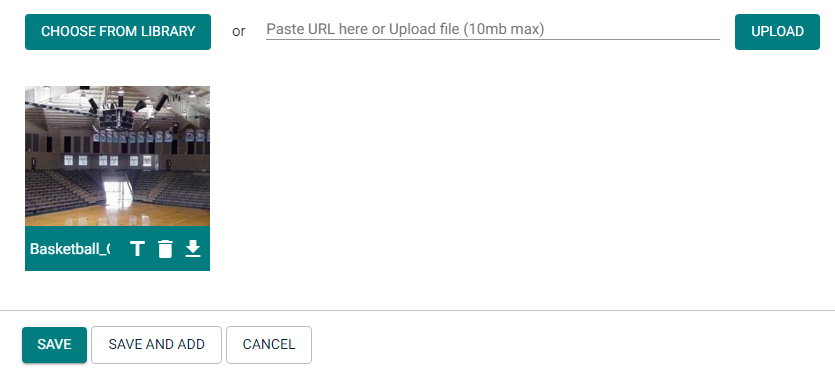
- Attach a file or image to the task by using one of the following options:
Choosing to Upload an attachment by locating the file on your computer, or pasting the attachment URL in the text field.
Clicking Choose From Library to find an attachment that has been added to the Event Publisher media library.
- There are two Save options available:
- Click Save to finalize your changes.
- Click Save & Add to finalize your changes and begin creating a new task.
Editing and Deleting Tasks
- Click Edit to reopen the Task and make changes to any of the previously entered fields.
- Click Delete to remove the Task entirely.
Submitting the Event
- Click Terms and Conditions to review any terms that have been defined for this event form and then click Agree.
NOTE This link will only appear if Terms and Conditions have been defined for this event form.
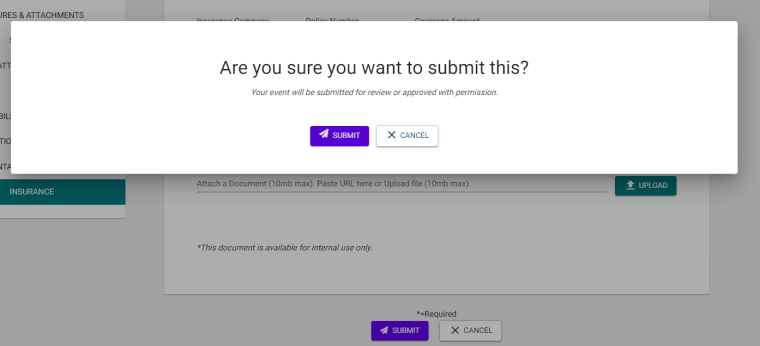
- When you have finished entering all necessary information on the event form, click the Submit button found at the bottom of the form.
NOTE If you are in the Approval Process for this event, submitting the event will be treated as your approval of the event. If approval of another user is also required before the event can be published, the event will show in their approval queue.
- In the window that appears, click Save.
Submit Event Requests on Behalf of Others
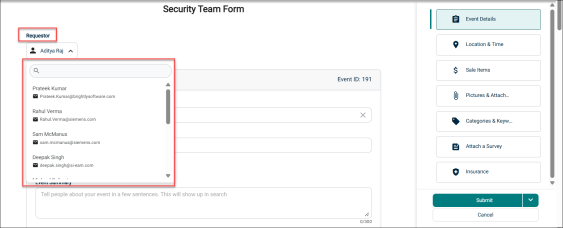
You can submit an event on behalf of others in the similar way as to submitting the event by yourself.
-
Go to the CREATE AN EVENT button from the side navigation.
-
The event form page will open.
-
Click on the Requestor drop-down and select the person you are submitting the event for.
-
Fill in all the details to create the event including Event Details, Location & Time, Sale Items, Pictures & Attachments, Categories & Keywords, Additional Information, Attach a Survey, Contact Information, Insurance etc. The steps are mentioned here.
-
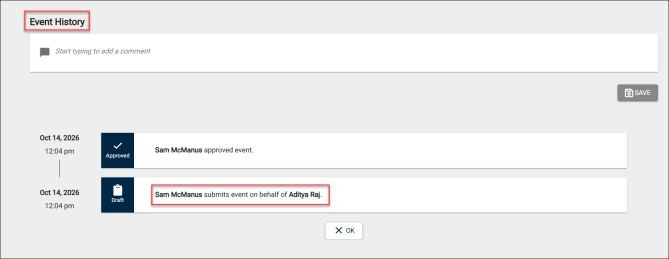
Once you submit the event, you can check the details in the Event History.
-
The Event History records both the submitter and the requester in the format: "User 1 submits event on behalf of User 2."