Back to Maintenance Manager for Manufacturing Main Menu
Creating an Assignment Rule
The Manage Work Orders feature allows Administrators and Technicians to automate work order assignments by defining rules based on location and work category.
Automatic assignment reduces manual effort and ensures the right technician is assigned instantly.
Example
If an administrator creates a rule to assign all Cleaning/ Inspection work at Texas Bldg HVAC Room to a technician named Dexter, then any work order created with that category and location will automatically be assigned to Dexter.
To create an assessment rule:
-
Navigate to the
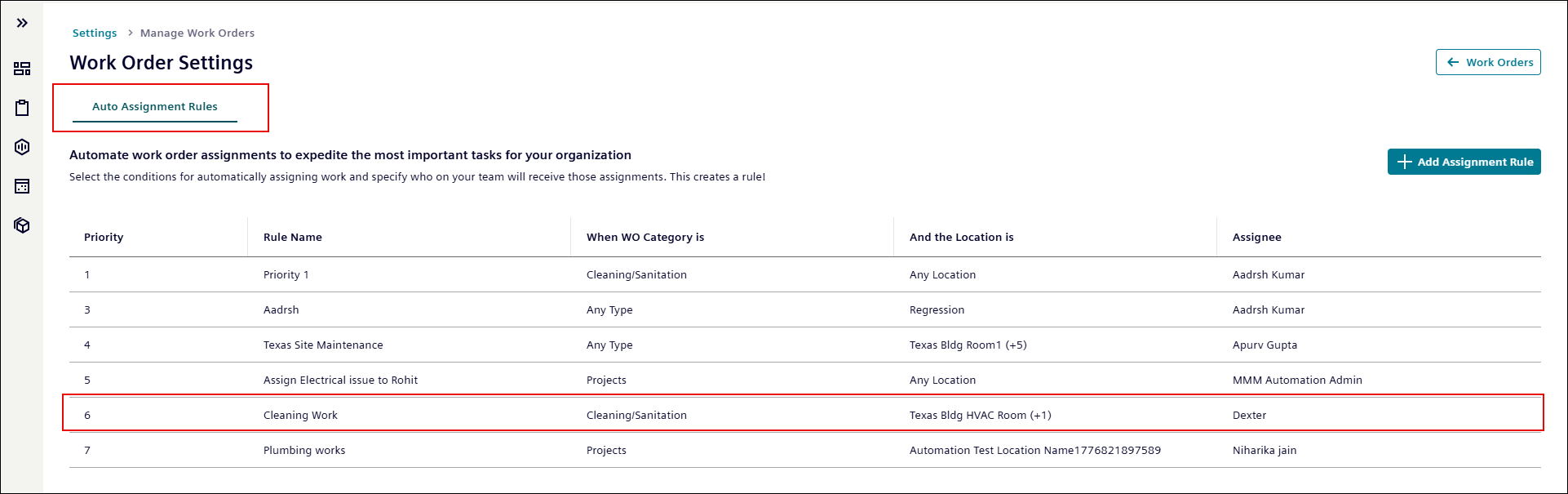
 S(Settings) > Manage Workorders.
 -
Click
 button at the upper right corner of the page.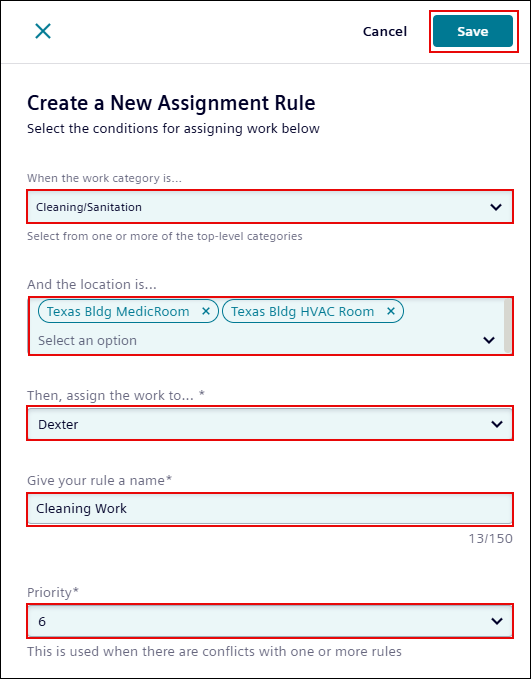
-
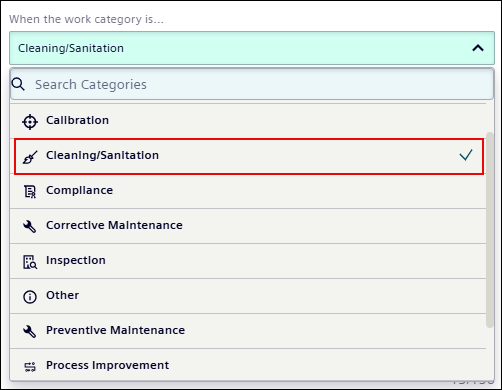
Select the work category from the When the work category is drop-down list.
-
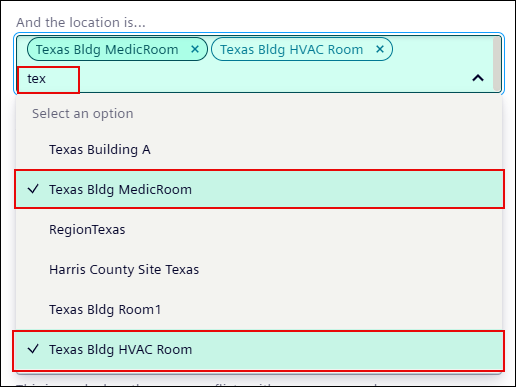
Enter or select the location of the work from the And the location is... drop-down list.
NOTE Multiple locations can be selected.
-
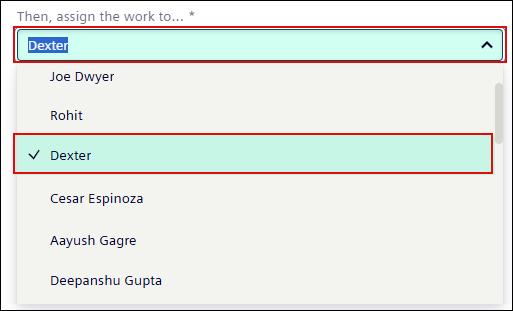
Enter or select the technician from Then, assign the work order to...* drop-down list.
-
Enter the rule name in the Give your rule a name* field.

-
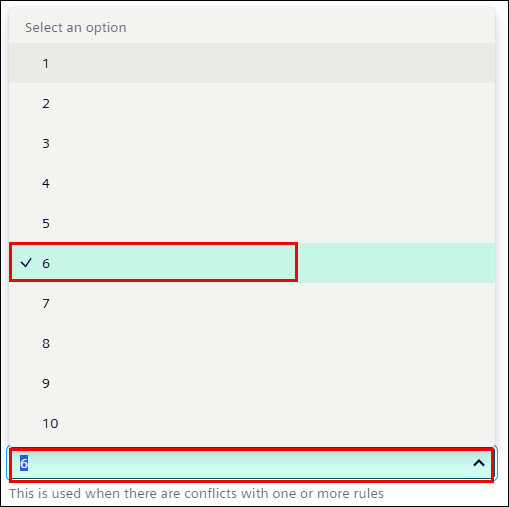
Select the Priority order from the Priority* drop-down list.
NOTE
* Priority determines which rule is applied first when multiple rules match.
* A lower number indicates higher priority.
-
Click Save button at the upper-right corner of the page.
-
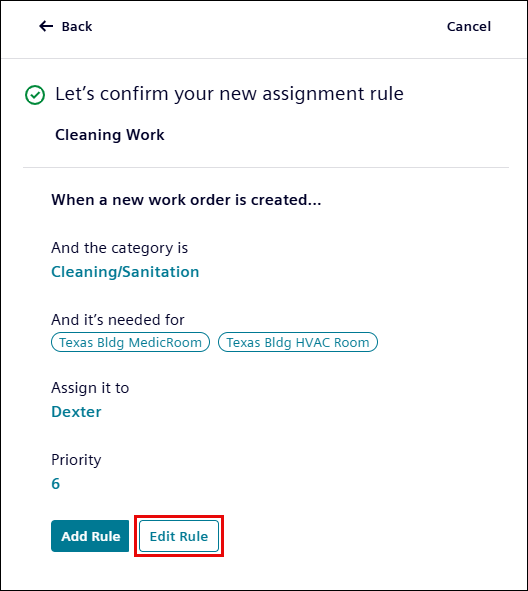
Click Add Rule button to add an assignment rule.
NOTE Click Edit Rule button next to the Add Rule button to make any changes or updates before adding a Rule.
-
The new rule appears under the Auto-Assignment Rules tab.