Back to Maintenance Manager for Manufacturing Main Menu
Adding and Managing Users
The Manage users feature allows Administrators to add and manage users, assign roles, and set a user's hourly rate. Administrators can also deactivate users, and edit user details such as name, role, and hourly rate.
Adding a New User
To add a new user:
-
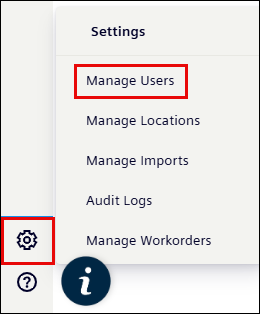
Navigate to the
 (Settings) icon.
 -
Click Manage Users.
-
Click +New User button at upper right corner of the page.

-
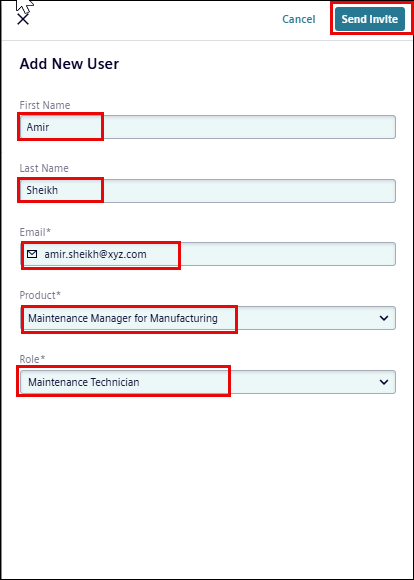
Enter the following details:
-
First Name (Optional)
-
Last Name (Optional)
-
Email Address
-
Select a Product from the drop-down list
-
Select a Role from the drop-down list
-
-
Assign a role from the Role drop-down list.
-
Click the Send Invite button.
The system sends an email invitation to the email address you specified. Use the invitation email to set your password and sign in to your account.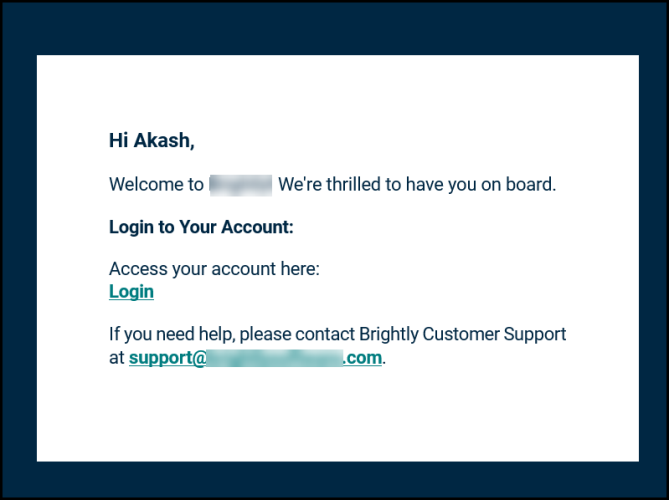
NOTE
* You must set up your password within 8 hours of receiving the invitation email. After 8 hours, the invitation link expires.
* See How to Log in to know how to set-up a password.
Managing Users
Searching for Users
-
In the search box at the upper-left corner of the page, enter the username.
-
Review the search results displayed in the users list.

Updating User’s Details
-
Click the user row in the users list.

-
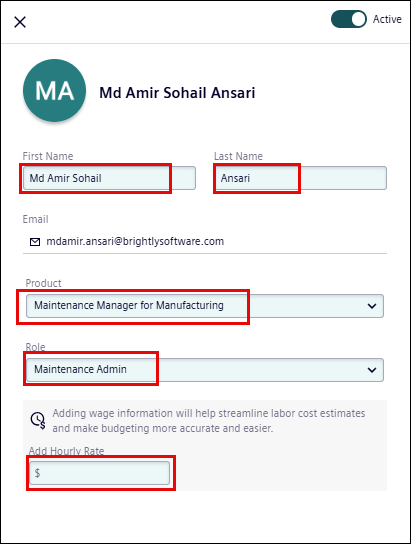
Update the details as required:
-
First Name
-
Last Name
-
Add Hourly Rate
-
Product
-
Role
-
NOTE Email address cannot be updated.
Deactivating and Activating Users
-
Click the user row in the users list.
-
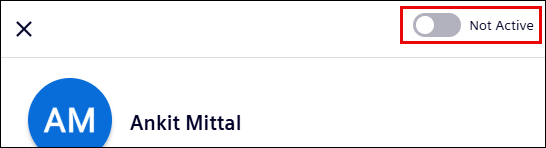
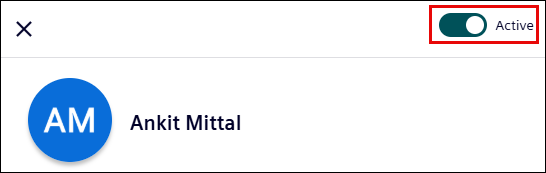
Turn off the Active toggle switch at the upper-right corner of the page to deactivate the user.
NOTE Once deactivated, the user cannot login and will no longer appear in the Assign-to list if they are Administrator or Technician.
-
Turn on the Not active toggle switch to activate the user.