Back to Maintenance Manager for Manufacturing Main Menu
Adding an Inventory Item
The Inventory Management feature allows Administrator to add inventory items and stock information for inventory tracking.
To add an Inventory Item:
-
Navigate to the
 (Inventory Management) page.
 -
Click the + Add Item button.

-
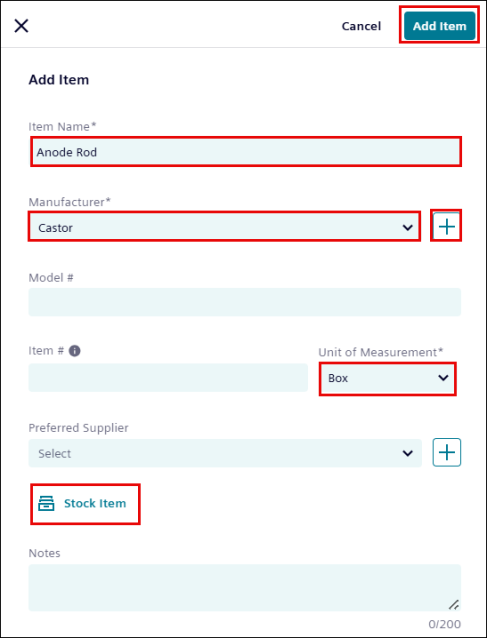
Enter the Item Name.
-
Click
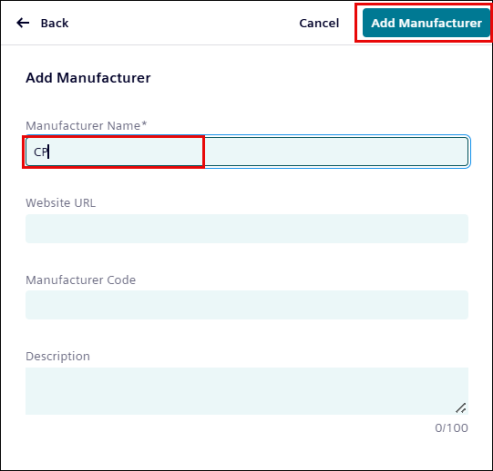
 button to enter the Manufacturer Name, and then click Add Manufacturer.
-
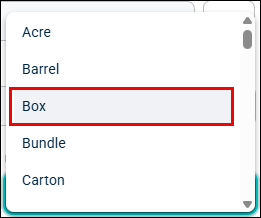
Select a Unit of Measurement from the drop-down list.
-
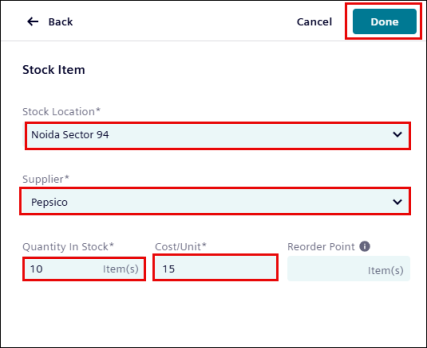
To mark the item as In Stock instead of Not Procured, select Stock Item and enter the following details:
-
Select a location name from the Stock location drop-down list.
-
Select a Supplier name from the Supplier drop-down list.
-
Enter Quantity in Stock and Cost/Unit.
-
Click Done.
-
NOTE The Reorder Point defines the minimum stock level for an item. When inventory falls below this value, the item is considered low in stock and may require replenishment.
-
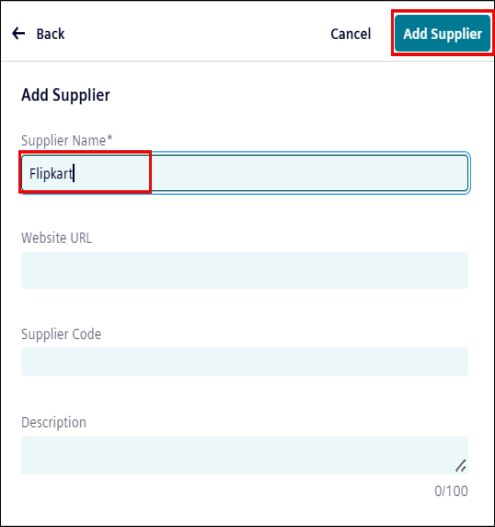
Click
 to enter the Preferred Supplier name, then click Add Supplier.
-
Optionally enter:
-
Model#,
-
Item#,
-
Preferred Supplier
-
Notes
-
NOTE
* Fields marked with asterisk (*) are required fields.
* The Item # is optional. If no Item number is provided system automatically generates an item number.
-
Click Add Item.
The item appears in the inventory list.
Add Stock for an Item
After an item is added, stock information can be added to make the item available for inventory tracking and work order usage.
Items created without stock information remain in the Not Procured status until stock details are added.
NOTE Use the following procedure if stock information was not provided when the inventory item was added.
To add an item in stock:
-
In the Item list, click the Store Item button for the newly added item.

A pop-up page opens by the item name of the newly added item.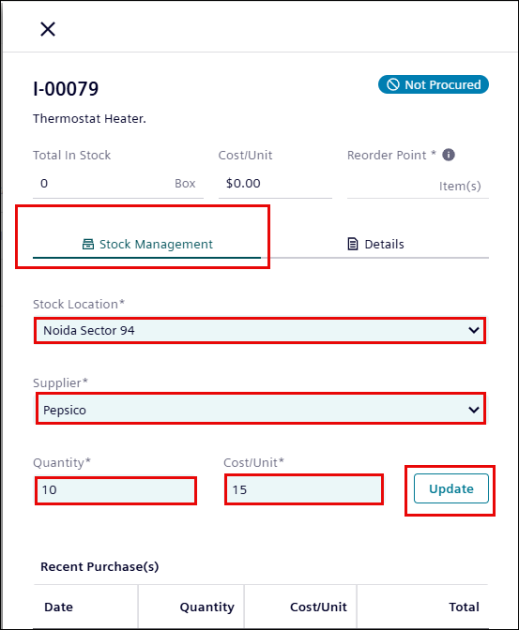
-
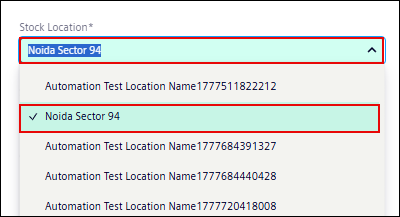
Under the Stock Management tab, select a location name from the Stock location drop-down list.
-
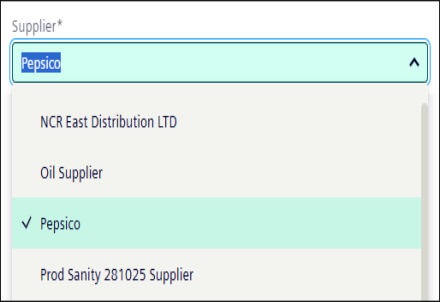
Select a Supplier name from the Supplier drop-down list.
-
Enter Quantity and Cost/Unit, then click Update.

-
Status of the item changes to In Stock.

