Back to Maintenance Manager for Education Main Menu
Reports
You can view and run Work Orders reports in one place.
-
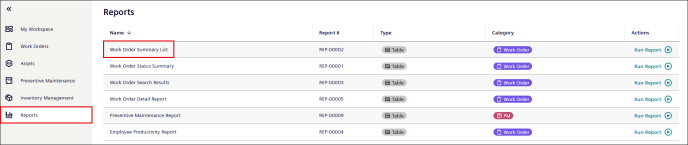
Go to the Reports
 icon.
icon. -
Six default reports appear:
-
Work Order Summary List
-
Work Order Status Summary
-
Work Order Search Results
-
Work Order Detail Report
-
Preventive Maintenance Report
-
Employee Productivity Report
-
Using Reports
-
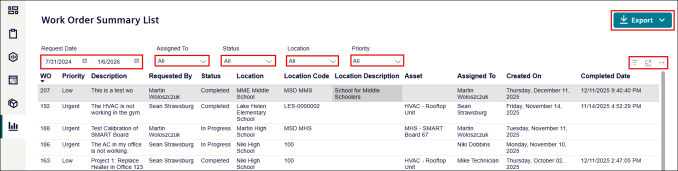
Select a report, for example, Work Order Summary List.
-
Select date range from the Request Date Calendar.
NOTE You can select a date range of up to one year from the current date.
-
Click the Assigned to drop-down list to filter reports by assignee.
-
Click the Status drop-down list such as New, In progress, Complete.
-
Click the Location drop-down list.
-
Click the Priority such as Critical, Low, Medium, Urgent.
-
Click the Export button to export report in MS-Excel or CSV file.
-
Click
 icon to see how many and which filters are currently applied.
-
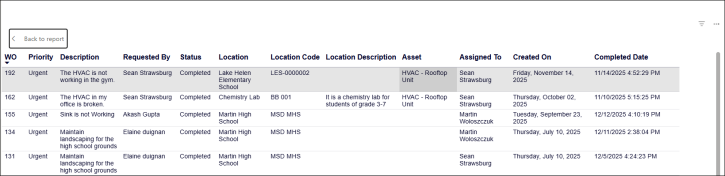
Click the
 focus icon to change the view to focus mode., This hides filter options above the row headings.
 -
Click the Back to report link to return to the normal mode.
-
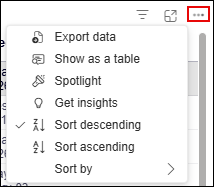
Click the
 icon to
-
Export data
-
Show as table
-
Spotlight
-
Get insights
-
Sort descending
-
Sort ascending
-
