Back to Maintenance Manager for Education Main Menu
How to Log in
Logging into Maintenance Manager for Education
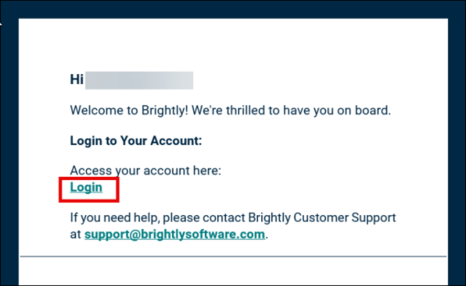
Once the admin adds the user, Login link is sent to them on the registered email ids.
-
Click the Login link on the registered email to open the Sign-in page.
-
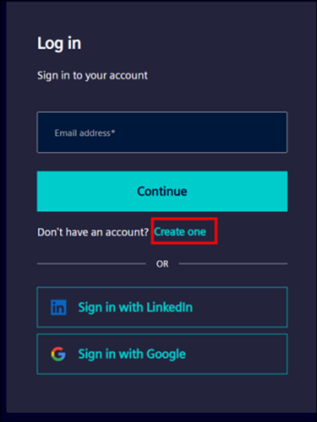
If you are signing in for the first time, click Create One.
-
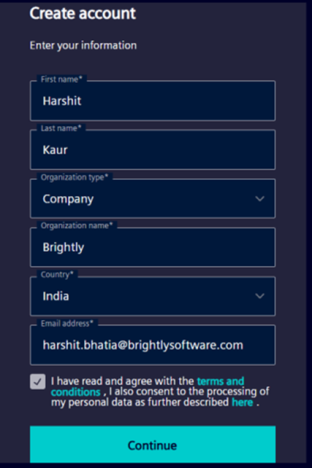
On Create account page, enter your information, accept the Terms and Conditions, and click Continue.
-
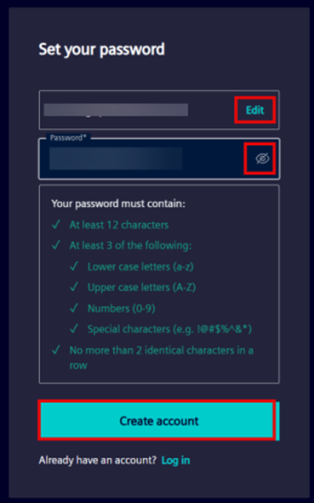
On Set your password screen, enter a password and click Create account. You can make changes to email id using Edit button and use to the eye icon to see the password visibility as you type.
NOTE The password must follow the mentioned criteria.
-
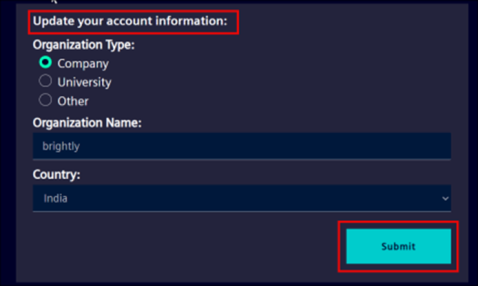
Under ‘Update your account information’:
-
Select your Organization Type.
-
Enter the Organization Name.
-
Select a Country from the drop-down list.
-
-
Click Submit.
-
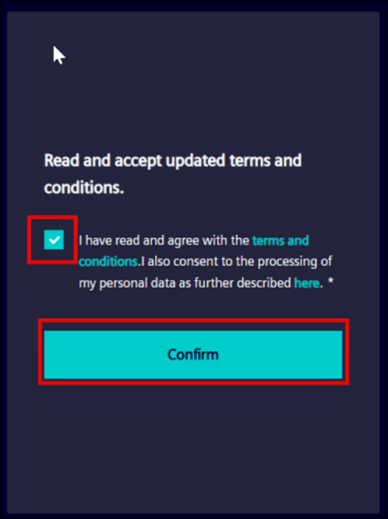
In the next page, review and accept the Terms and Conditions, then click Confirm.
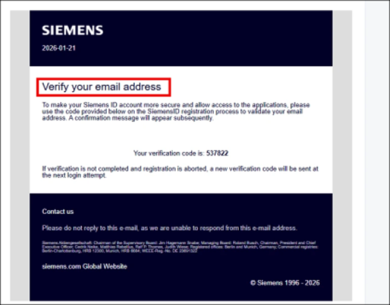
A verification code will be emailed to you.
-
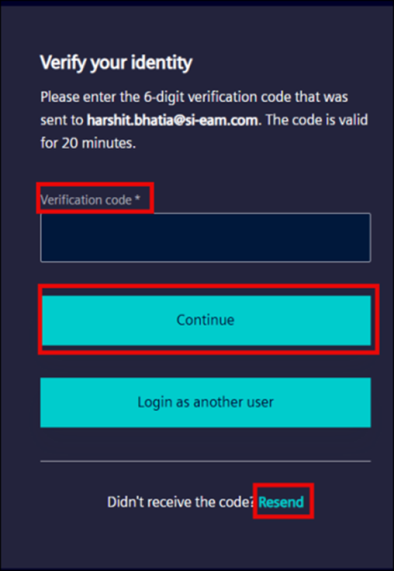
Enter the code and click Continue to complete sign-in. You can use the Resend button if email is not received.
-
Upon successful login, Maintenance Manager for Education home page will appear on the screen.
