Back to Maintenance Manager for Education Main Menu
Using My Workspace
My Workspace is a centralized hub that provides real-time insights into education operation. It allows Administrators and technician to track and view the Preventive Maintenance workorders completion rate, due work orders, upcoming work orders, total cost of the assets, and work orders to approve across multiple technicians in one place.
My Workspace streamlines operations, improves productivity, and reduces navigation time across the application.
My Workspace consists of five main tiles or sections:
-
My Team Today
-
PM Completion Rate
-
Upcoming Work Orders
-
Approve Work Orders
-
Asset Maintenance Cost YTD
The Asset Maintenance Cost YTD tile is available only to Administrators and does not appear to Technicians.
Accessing My Workspace
-
Click the My Workspace
 icon to open it.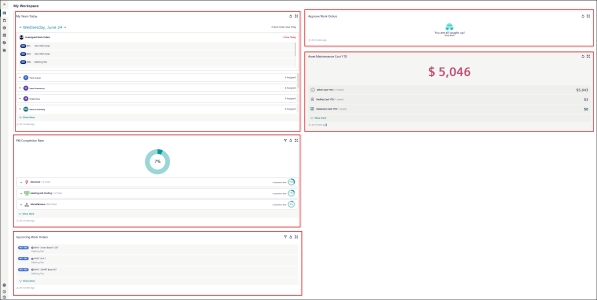
My Team Today
My Team Today tile displays the total number of unassigned work orders due for today or any selected date.
It also shows a list of technicians with number of assigned work orders.
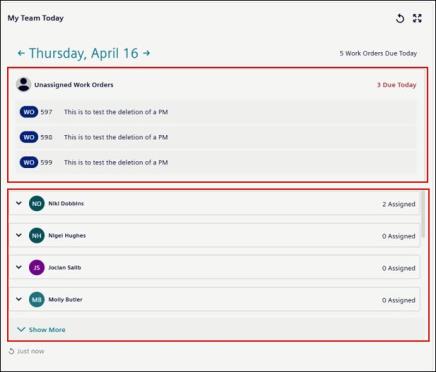
To use the ‘My Team Today’ tile:
-
Click
 to view the past and
  to the future due work orders.
-
Drag and drop the work order from the Unassigned Work Orders to a technician’s name to assign them a work order.
-
Click
 to maximize the tile and
  to minimize the tile.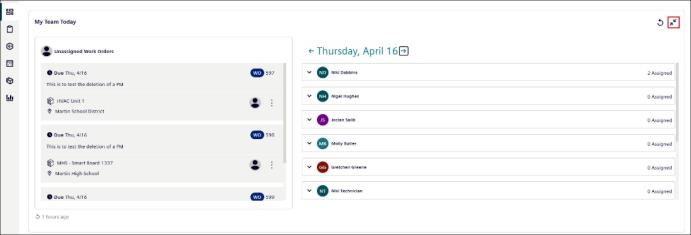
-
Click Technician’ name to see which workorders are assigned to him.
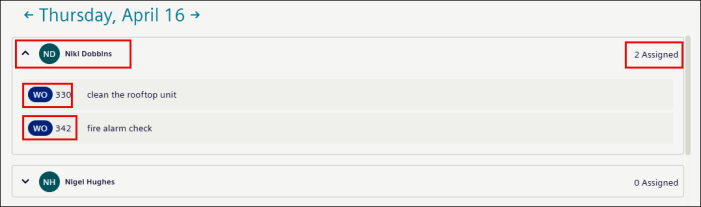
-
Click
 to reload updated workspace data.
NOTE The timestamp displayed in the lower-left corner of the tile shows when the tile was last refreshed.
PM Completion Rate
The PM Completion Rate tile displays the percentage of completed Preventive Maintenance work orders across multiple work order categories such as Electrical, Heating and Cooling.
Example, 7% PM completion rate indicates that only 7% of the PM generated workorders are completed out of total workorders across all multiple work order categories.
Use the PM Completion Rate tile to view and track the Preventive Maintenance (PM) generated work orders categorize in different work order categories.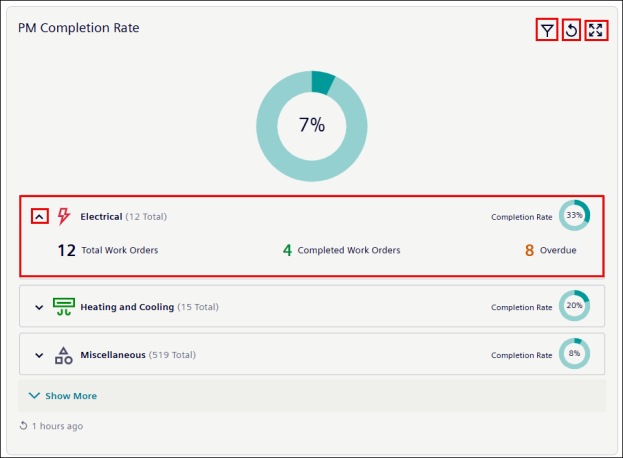
To use the ‘PM Completion Rate’ tile:
-
Click a work order category name such as Electrical to view the completion rate, total, completed, and overdue work orders.
-
Click
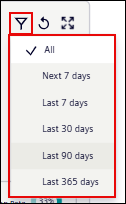
 icon to filter PM generated work orders by the following time range:
-
Next 7 days
-
Last 7 days
-
Last 30 days
-
Last 90 days
-
Last 365 days
-
-
Click
 icon to refresh the tile.
 -
Click
 icon to expand and focus on the tile.
NOTE The timestamp displayed in the lower-left corner of the tile shows when the tile was last refreshed.
Upcoming Work Orders
The Upcoming Work Orders tile displays scheduled work orders for the next 90 days.
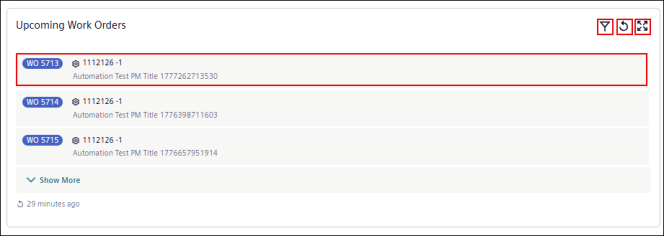
To use the ‘Upcoming Work Orders’ tile:
-
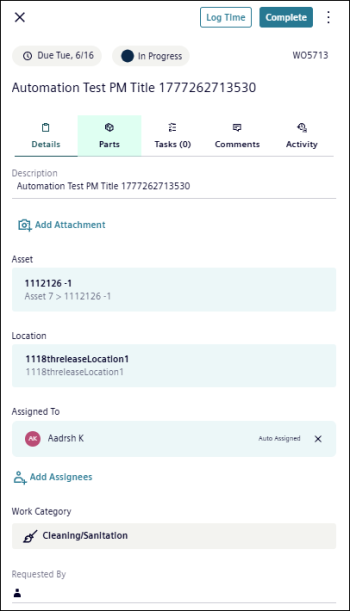
Click a work order to open the work order panel to view details, update information, and assign a technician.

-
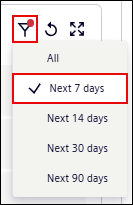
Click
icon to filter upcoming work orders by the following time range:-
Next 7 days
-
Next 14 days
-
Next 30 days
-
Next 90 days
-
-
Click
icon to refresh the tile. -
Click
icon to expand and focus on the tile.NOTE The timestamp displayed in the lower-left corner of the tile shows when the tile was last refreshed.
Approve Work Orders
Approve Work Orders display the work orders which are yet to approve for today and allow Administrators and technicians to approve, decline and assign them to technicians.
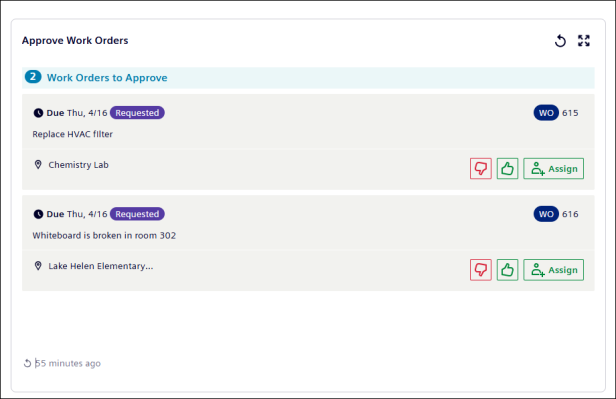
To use the ‘Approve Work Orders’ tile:
-
Click
 to decline the work order.
 -
Click
 to approve the work order.
 -
Click
 to assign a work category to a work order.
 -
Click Save Approval.
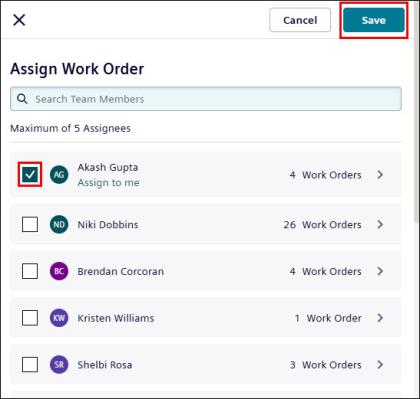
Assign Work Order page opens.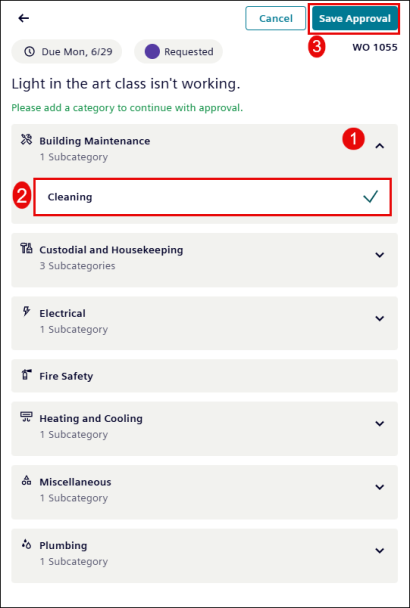
-
Search or select the technician and click Save to assign a technician.
NOTE The timestamp displayed in the lower-left corner of the tile shows when the tile was last refreshed.
Asset Maintenance Cost YTD
The Asset Maintenance Cost YTD displays the total maintenance cost for assets across multiple asset types such as Facility Cost YTD and Other Cost YTD. This includes both part and labor cost.
NOTE The asset type in this tile is non-interactive.
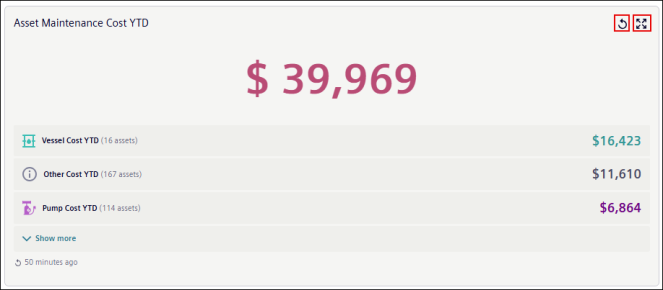
To use the ‘Asset Maintenance Cost YTD’ tile:
-
Click
icon to update the tile. -
Click
icon to expand and focus on the tile.NOTE The timestamp displayed in the lower-left corner of the tile shows when the tile was last refreshed.
