Back to Asset Essentials Main Menu
Report Access and Permissions
Access to reports is controlled through multiple permission layers. A user must satisfy all applicable requirements before a report is available and its data can be viewed.
Permission Hierarchy
Report access is governed by the following layers:
-
Feature Flags
-
Reporting Menu Access
-
Report Category Permissions
-
Row-Level Security (RLS) and Column-Level Security (CLS)
Feature Flags
Reporting functionality is initially controlled through feature flags to support phased rollouts.
-
A feature flag enables Reporting functionality.
-
A separate feature flag controls Asset Hierarchy Reporting.
-
Accounts must be explicitly enabled while the features are being rolled out.
-
Once a feature becomes generally available, the corresponding feature flag may be retired.
Reporting Menu Access
Users must have access to the Reports menu item through their assigned role.
-
Login to Asset Essentials.
-
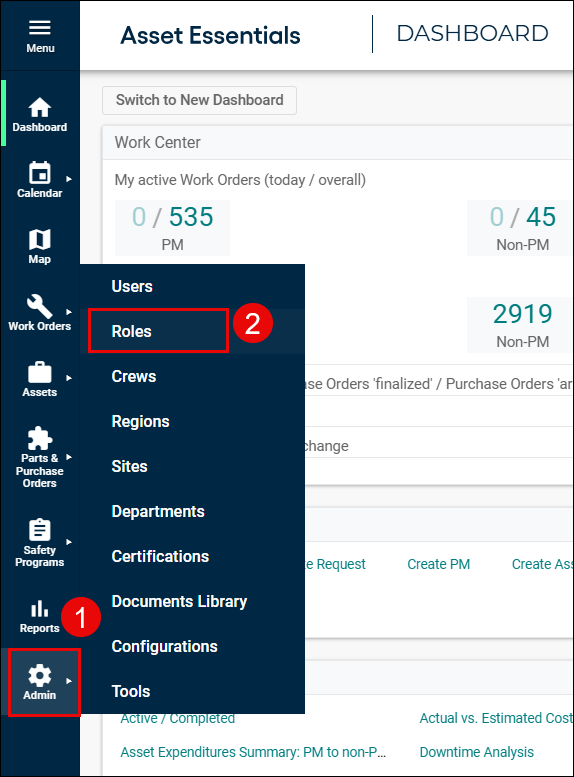
Click Admin à Roles.
-
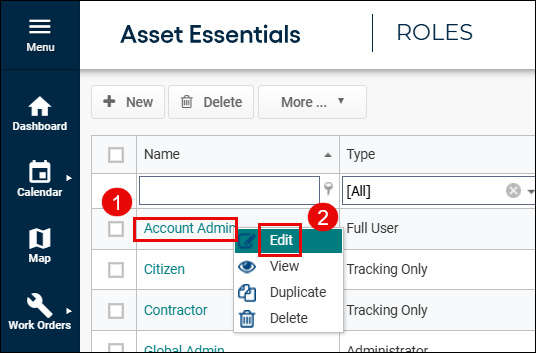
Right-click on the role name, select Edit.
-
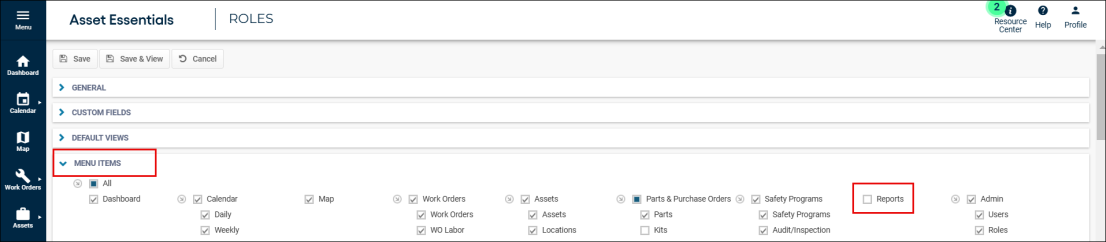
Scroll to the MENU ITEMS section and click on the drop-down menu.
-
Toggle Reports checkbox on/off based on your preferences.
-
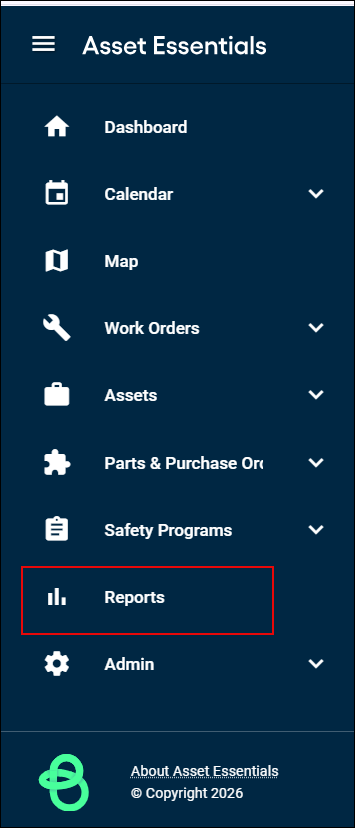
The Reports menu option will appear on the Main screen. If the Reports menu item is not enabled for a role, users assigned to that role cannot access reporting regardless of any additional permissions.
Report Category Permissions
Reports can be associated with one or more permission categories. These categories determine whether a report is visible to a user and aligns to the content within the report. To update permissions:
-
Click Admin à Roles.
-
Right-click on the role name, select Edit.
-
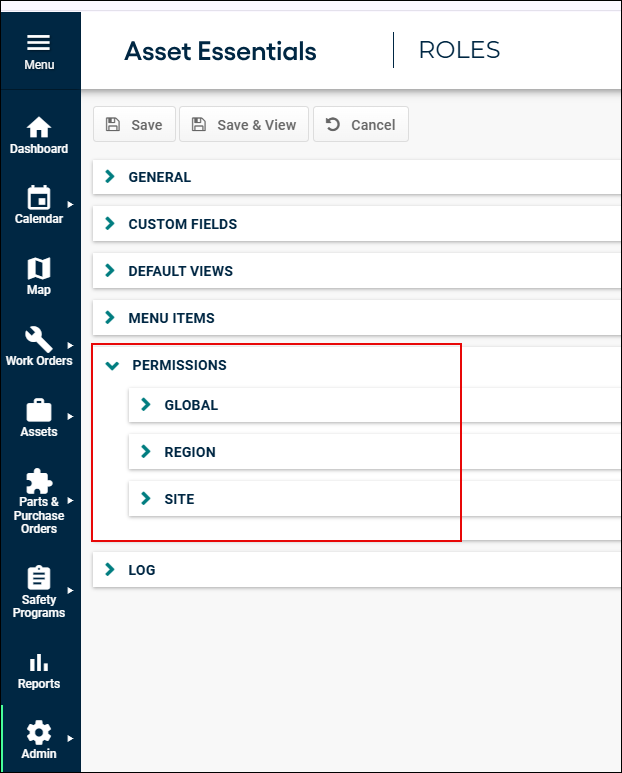
Scroll to PERMISSIONS section and click on the drop-down menu.
-
Go to the required level of permissions (Global, Region, or Site.)
-
Toggle checkbox on/off based on your preferences.
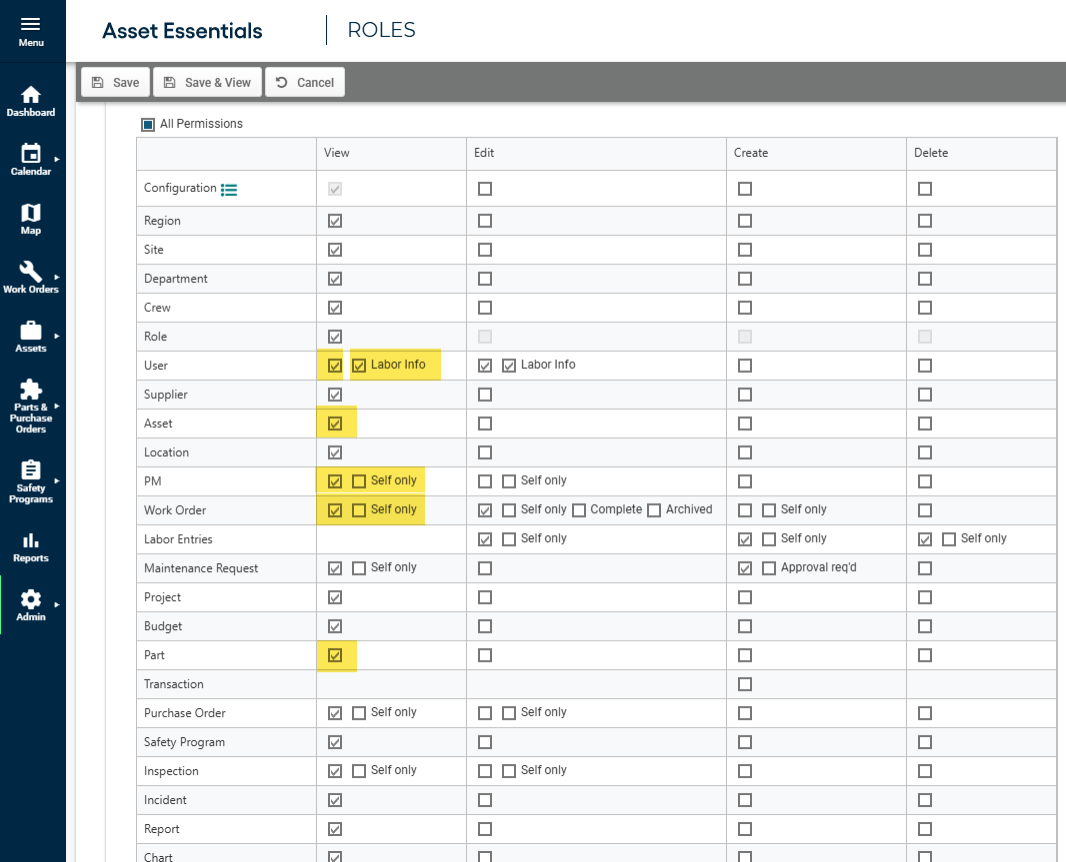
This category is not linked to user permissions but rather the account feature flag:
-
Asset
-
Inventory
-
Labor
-
Work Order
-
Site
-
User
-
Preventative Maintenance
-
Dynamic Data, refer to Add-on Dynamic Data for more information.
If a report is assigned one or more categories, users must have at least one of the corresponding module permissions to see the report in the report catalog. Reports for unauthorized modules are hidden to prevent users from viewing reports for data they cannot access.
Row-Level Security (RLS) and Column-Level Security (CLS)
Report visibility does not automatically grant access to all report data. When a report is executed, additional security controls are applied to ensure users only see authorized data.
Row-Level Security (RLS)
RLS restricts the records displayed in a report based on the user’s data access permissions.
For example, a regional maintenance manager may only be able to view asset records for facilities within their assigned region, while data from other locations remains hidden.
Column-Level Security (CLS)
CLS restricts access to specific report fields or columns.
For example, a user may be permitted to view asset information for their location, while sensitive financial fields such as vendor contract values or labor rates are excluded from the report results.
Together, RLS and CLS ensure that users can access only the data and attributes authorized by their assigned permissions and security policies.
