Back to Asset Essentials Main Menu
Inventory Update Report
The Inventory Update report provides a detailed log of all changes and modifications made to your inventory records. This is crucial for maintaining accurate inventory counts and understanding stock adjustments.
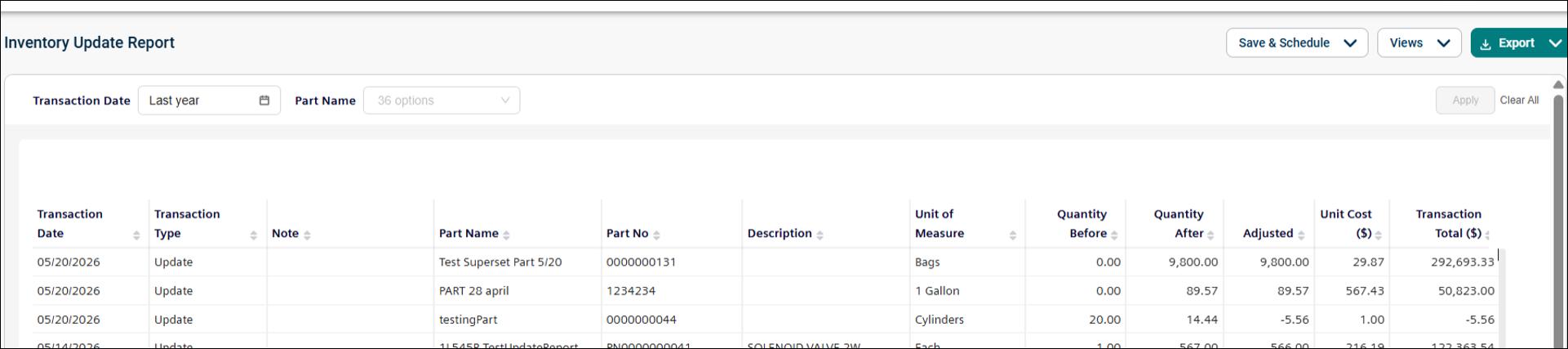
Use this report to:
-
Track all inventory adjustments (e.g., quantity changes, location transfers).
-
Audit inventory discrepancies.
-
Monitor who is making changes to inventory records.
-
Review historical inventory movements.
Getting Started
Filters
Filters are located above the main report area. Use them in any order:
|
Filter |
What It Does |
Default |
|
Transaction Date |
Show inventory updates from a specific date range. NOTE Refer to Limitations article for date selection. |
Last month |
|
Part Name |
Narrow down to one or more specific inventory parts. |
All |
Report Structure
This report details each inventory update, including the part, the date of the change, and other relevant update information.
Fields
|
Field |
Description |
|
Transaction Date |
Shows the date the inventory record was updated. |
|
Transaction Type |
Indicates the type of transaction performed. |
|
Note |
Provides any notes related to the adjustment. |
|
Part Name |
Displays the name of the inventory item updated. |
|
Part No |
Shows the unique identifier for the part. |
|
Description |
Describes the type of change made (e.g., quantity adjustment, transfer). |
|
Unit of Measure |
Indicates the unit used to measure the part. |
|
Quantity Before |
Shows the quantity before the update. |
|
Quantity After |
Shows the quantity after the update. |
|
Adjusted |
Displays the quantity change applied in the transaction. |
|
Unit Cost |
Shows the cost per unit of the part. |
|
Transaction |
Displays the total cost of the transaction. |
Common Tasks
-
To see more updates, expand the Transaction Date filter (e.g., to "Last Quarter" or "Last Year") to capture a longer history of changes.
-
To investigate changes to a specific item, filter by Part Name.
- Review of recent inventory adjustments:
-
Keep the default 30-day Transaction Date filter.
-
Scan for any unexpected or unauthorized changes.
-
-
Track all changes for a specific part:
- Filter by Part Name.
-
Review the history of updates for that item.
