Back to Asset Essentials Main Menu
Active vs Completed Work Orders Report
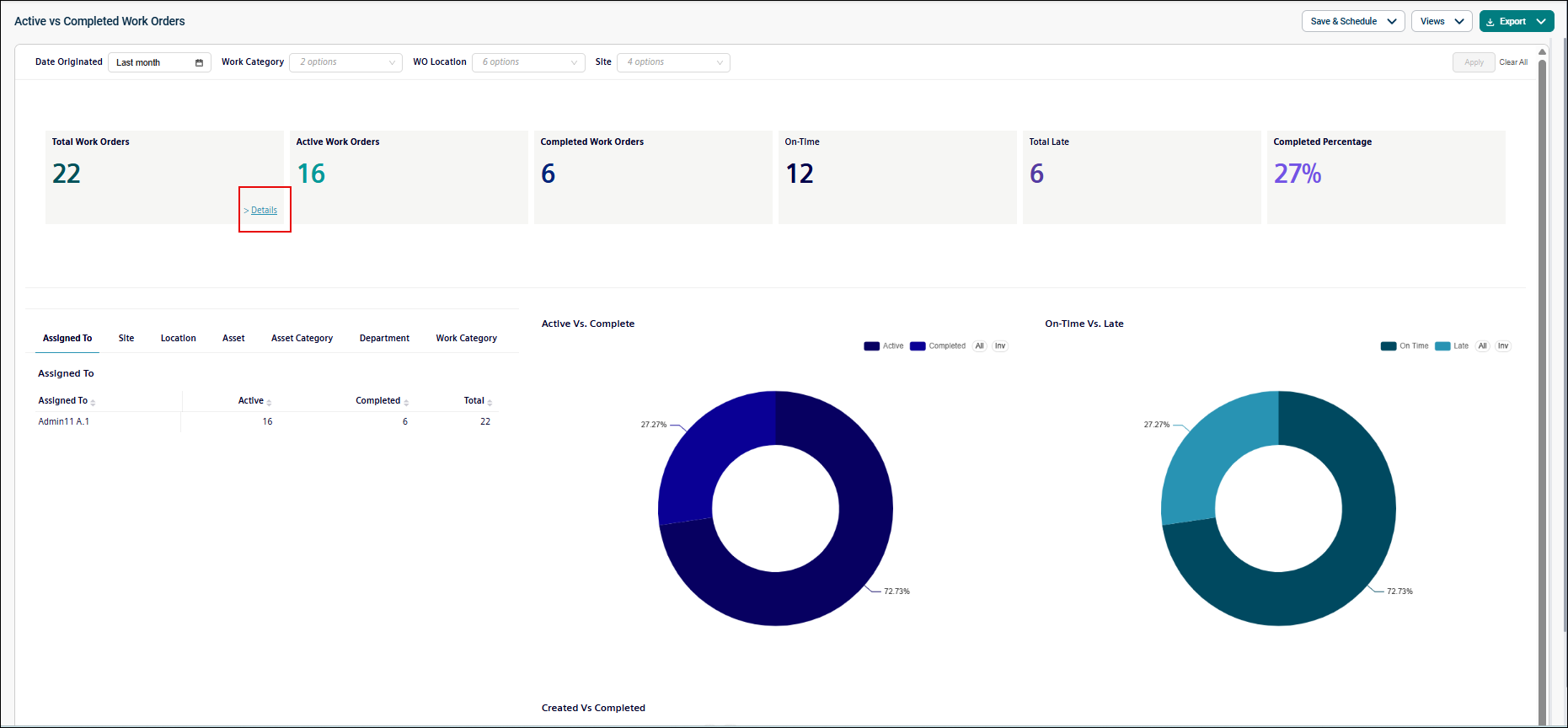
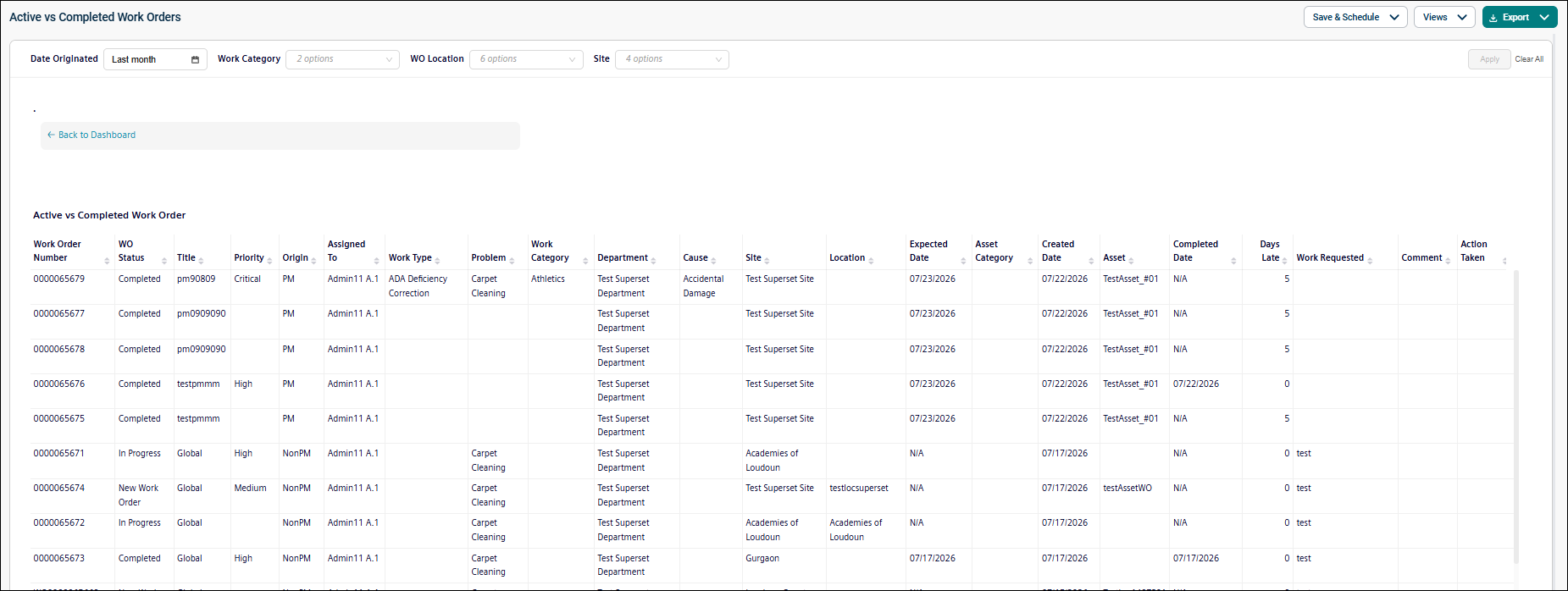
The Active vs Completed Work Orders report provides insights into work order completion performance. It helps users monitor active work, completed work, and overall maintenance efficiency. Clicking on Details link under Total Work Orders card will shows the detailed view of the report.
Use this report to:
-
Track active and completed work orders.
-
Monitor completion performance.
-
Identify overdue work.
-
Measure maintenance efficiency.
Getting Started
Filters
Filters are located above the main report area. Use them in any order.
|
Filter |
What It Does |
Default |
|
Date Originated |
Filters work orders within a selected date range based on the date the work order originated. NOTE Refer to Limitations article for date selection. |
Last Month |
|
Work Category |
Filters work orders by the assigned work category (for example, Athletics, Electrical, Filters, HVAC, or Plumbing). |
All |
|
WO Location |
Filters work orders by the location where the work was created or performed. |
All |
|
Site |
Filters work orders by the associated site. |
All |
Report Structure
This dashboard-style report summarizes work order activity using KPIs, pie charts, graphs and tables.
Fields
|
Field |
Description |
|
Total Work Orders |
Displays the total number of work orders included in the report based on the selected filters. |
|
Active Work Orders |
Shows the number of work orders that are currently in an active status. |
|
Completed Work Orders |
Displays the number of work orders that have been completed. |
|
On-Time |
Shows the number of work orders completed on or before their expected completion date. |
|
Total Late |
Displays the number of work orders completed after their expected completion date. |
|
Completed Percentage |
Shows the percentage of work orders that have been completed. |
|
Work Order Number |
Displays the user-visible work order number. |
|
WO Status |
Shows the current status of the work order. |
|
Title |
Displays the title or summary of the work order. |
|
Priority |
Indicates the priority assigned to the work order. |
|
Origin |
Shows whether the work order originated from a preventive maintenance schedule (PM) or was created independently (Non-PM). |
|
Assigned To |
Displays the first and last name of the user assigned to the work order. |
|
Work Type |
Indicates the reason the work is being performed (for example, Building Automation Systems, etc.) |
|
Problem |
Describes the issue or problem reported on the work order. |
|
Work Category |
Blank |
|
Department |
Displays the department associated with the work order or assigned user. |
|
Cause |
Identifies the cause of the issue, when specified. |
|
Site |
Shows the site associated with the work order. |
|
Location |
Displays the location where the work is being performed. |
|
Expected Date |
Indicates the date and time the work order is expected to be completed. |
|
Asset Category |
Shows the category assigned to the asset associated with the work order. |
|
Created Date |
Displays the date and time the work order was created. |
|
Asset |
Shows the asset associated with the work order. |
|
Completed Date |
Displays the date and time the work order was completed. |
|
Days Late |
Shows the number of days the work order exceeded its expected completion date. |
|
Work Requested |
Provides a description of the requested work. |
|
Comment |
Displays additional notes or comments recorded on the work order. |
|
Action Taken |
Describes the work performed to complete the work order. |
Common Tasks
-
Monitor maintenance backlog.
-
Identify overdue work orders.
-
Compare performance across sites or departments.
-
Track work order completion trends.
