Logging into TripDirect
*Note: If your organization is using SSO (single sign on) for user authentication, your login experience may be different. If you are having difficulty logging in using SSO or you are unsure whether your organization utilizes SSO for their Dude Solutions products, please contact your technology help desk for assistance.
- Open your web browser and type td.schooldude.com into the address bar and hit the Enter key. Bookmark this page or create a shortcut on your desktop to make it easy to come back to this page later.
- On the Account Login screen, enter your Login Name and Password.
- If needed, click on the eye icon (
 ) to view the text you have entered in the Password field.
- If needed, click on the eye icon (
- Make sure that TripDirect is selected in the Go To box.
- Click Sign In.
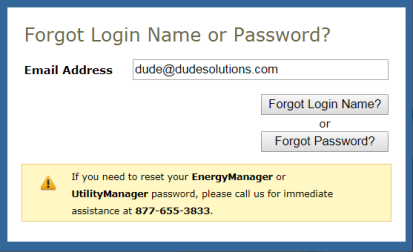
- If you have forgotten your login information, click the Forgot Login Name or Password? link under the Sign In button.
- Enter your Email Address.
- Click Forgot Login Name? to have your login name emailed to you.
- Click Forgot Password? to have an email sent to you with instructions to reset your password.
- If you need additional assistance logging in, see our Login Help page.
TripDirect Home Page
The elements of the TripDirect Home Page will vary for each user role, although the basic layout will be the same. Here are some highlighted sections of the Administrator page:
My Account Link
- From the Application Links drop down box, you can select a SchoolDude application from the list to jump between the different programs you have access to.
- Click the Logout link to exit the system.
- Click on the My Account link to go to your personal information page, where you can change your password or update your information.
- The Help link on the far right will take you to a page that lists ways to contact our Support team.

Home Page Banner
- The tabs at the top of the screen help you navigate to important areas of the application.
- Home - takes you to the TripDirect home page.
- Calendar - takes you to the Calendar page where you can view trips for particular locations and date ranges.
- New Trip Request - where you can enter new trip requests.
- Account Setup - where you can set up certain aspects of your account. This tab is only available to Administrators.

Search
- Search For: The Search For box under the Home tab can be used to find a trip request. Enter the Trip ID number into the box and click Go to bring up that form.
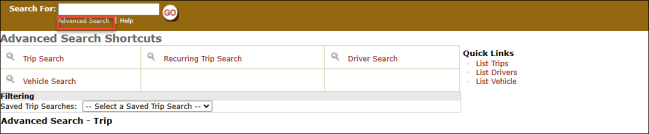
- Advanced Search: The Advanced Search link takes you to a more advanced search form where you can select multiple criteria to find a group of trips, drivers, or vehicles.
-
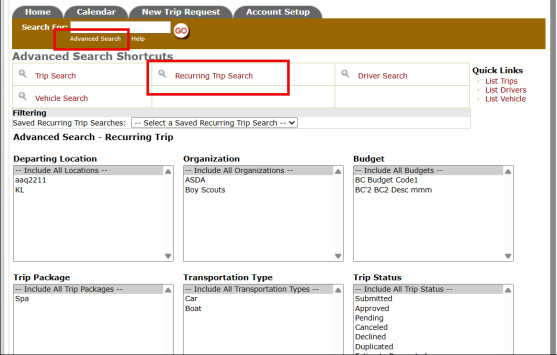
You can also search recurring trips using the advanced search. Click the Recurring Trip Search button to search for the trip details.
Quick Links:
-
You can filter out the details using the Quick Links option.
-
Use the List Trips, List Drivers and List Vehicle option to filter them respectively.

-
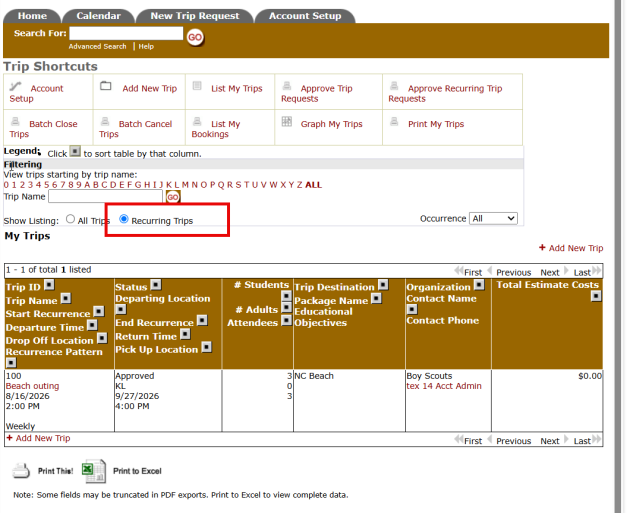
You can select the All Trips or Recurring Trip options to get the respective details.
Trip Requests
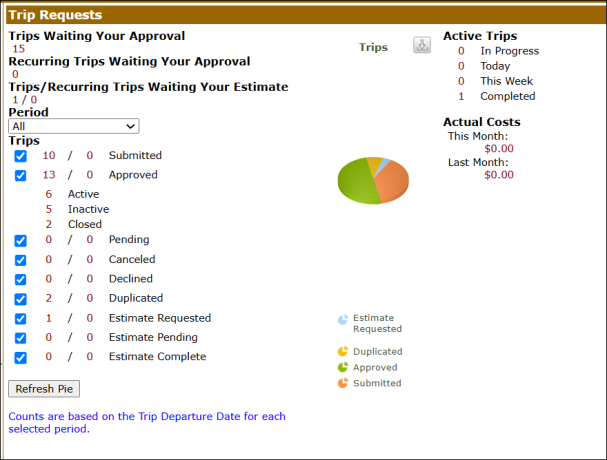
This center section shows you a breakdown of the statuses of all of the trips in your account.
- Waiting your Approval: It shows the number of trips requests assigned to you for approval. Click on the number to view and process the requests.
-
Recurring Trips Waiting Your Approval: It shows the number of requests for recurring trips that need your approval. Click on the number to view and process the requests.
- Trips/Recurring Trips Waiting your Estimate It shows the number of trips assigned to you for cost estimation including both one time trip and recurring trips. Click on the number to view the requests.
- Period: It lets you filter trips and their statuses by the selected timeframe. Use the dropdown to change the pie chart and see trips for all time or a specific period.
- Trips: It presents a detailed breakdown of requests by status and state:
-
Status: Submitted, Approved, Pending, Canceled, Declined, Duplicated, Estimate Requested, Estimate Pending, Estimate Complete
-
State: Active, Inactive, Closed
The pie chart next to this list is a graphical representation of the numbers in the list.
- Active Trips: This section provides a quick overview of In Progress, Completed and upcoming trips for the week.
- Actual Costs:This section summarizes the costs associated with trips from this month and last month.
-
Click the Refresh Pie button to update the chart according to your selected filters.
-
Counts are based on the Trip Departure Date for each selected period.
Upcoming Events
- This section lists the trips occurring within the next 5 days. Use the links to view the Prev 5 Days or Next 5 Days.
- You can filter your list of trips by Departing Location and/or Organization by using the drop down fields.

To Do Tasks
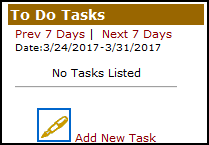
- This section will show any tasks that you have created that are scheduled to be done that week.
- To enter a new task into this section, click the Add New Task link and fill out the task form. This section will also show tasks from trips that are assigned to you.
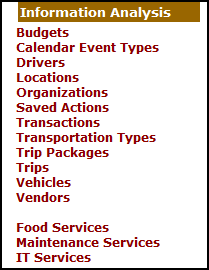
Information Analysis
- This section has links to all of the important fields in TripDirect.
- Click on any of these links to add items to the account, see a list of active items, and run reports on them.