Manage Assessment Tasks and Projects
Objective: Gain an understanding of how to complete or remove a Project or Task.
Completing an Assessment Task
When assigned to a task, and after all required form results have been submitted, typically a user would finalise the process by marking the task as completed.
To do this, first select 'Assessments' from the Navigation Sidebar, and then select 'My Assessments' from the Navigation dropdown.
Next, click on the 'Tasks' tab below the navigation dropdown:
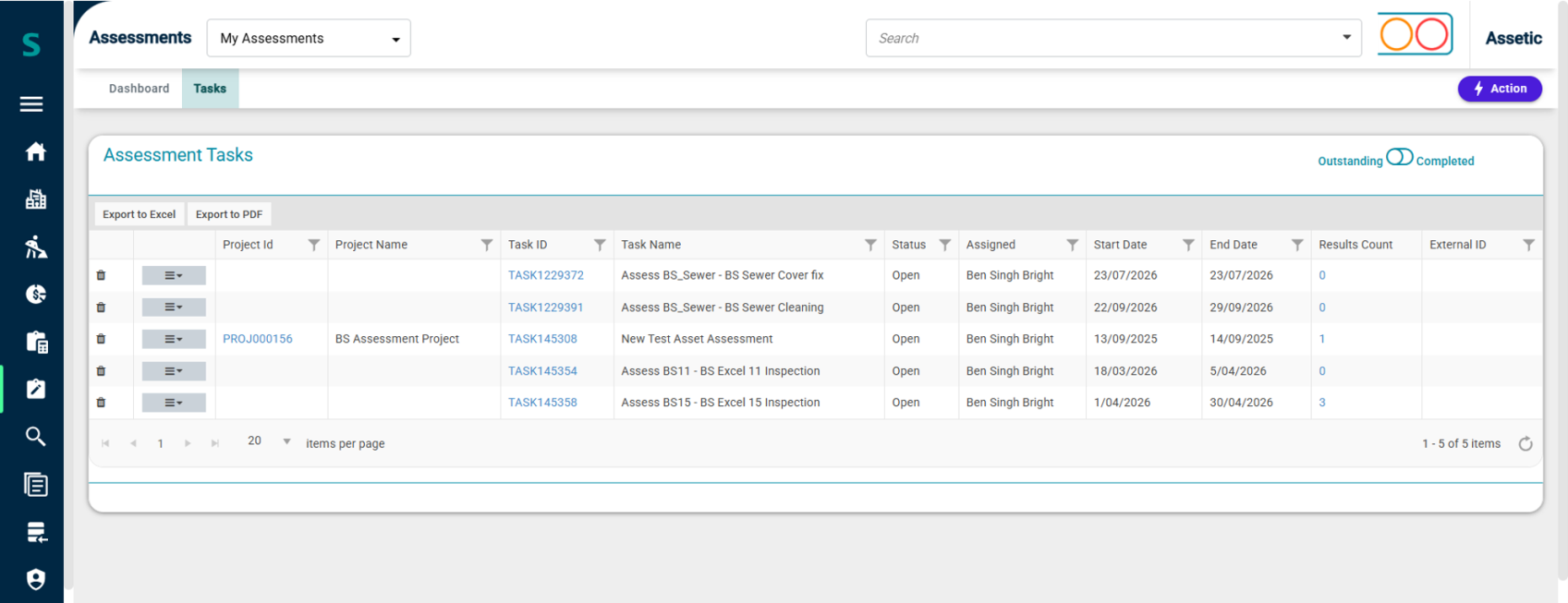
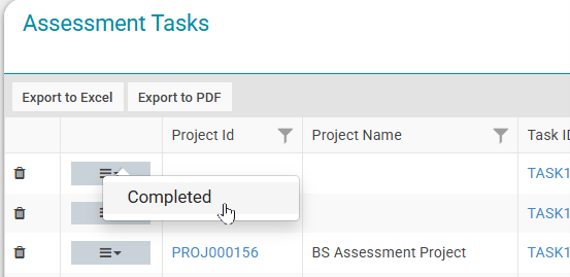
Then, click on the action button  next to a task, and select 'Completed':
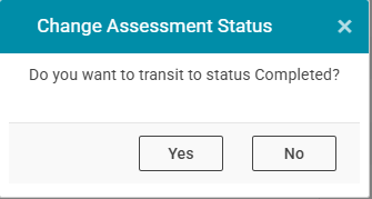
Once 'Completed' is selected, a confirmation window will pop-up prompt to select Yes or No for the action:
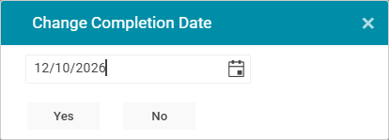
Once Yes is selected and date entered in the date selection pop-up, the Task will be marked as completed:
Users can quickly check the Assessment Form results by clicking the numbered hyperlink in the Results Count column:
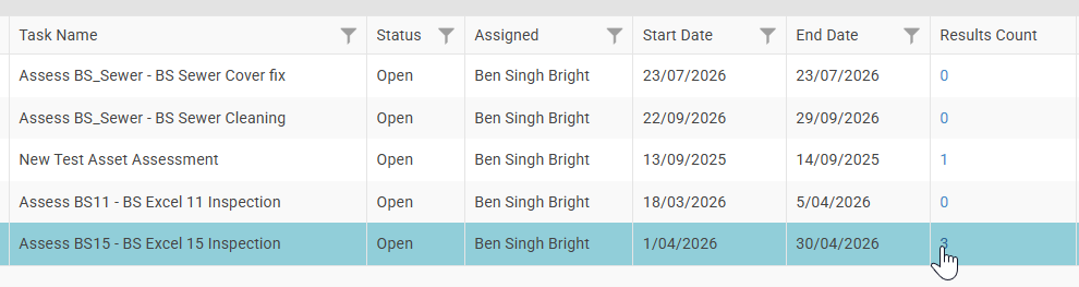
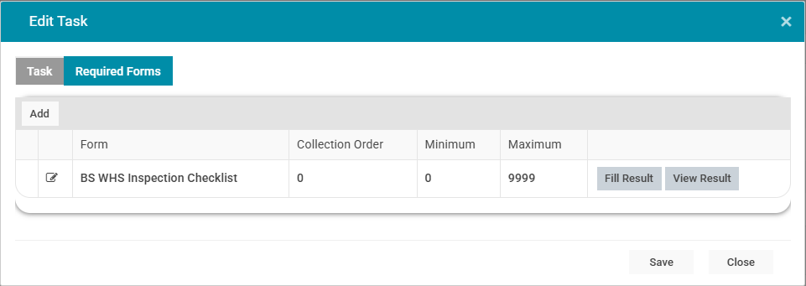
Clicking this will open the 'Edit Task' pop-up to see or fill the results:
Deleting an Assessment Task
It is also possible for users to remove assessment results if they are deemed invalid.
To do so, select the Task ID from the Assessments Tasks list to open the Edit Task pop-up.

Next, click on the 'Required Forms' tab in the pop-up, and click 'View Result' on the form with the assessment that is to be removed:

Then select the 'Delete' button on the assessment result that is to be removed:

A confirmation box will appear before completing the deletion of the assessment form result.

For users with Assessment Administration permissions, this same process can be followed to complete/remove Tasks and Projects, including ones they are not assigned to. This is done in the 'Manage Assessments' section of the Assessments module:

Please note that once a Task or Project has been completed, its status cannot be reverted.
